
Product metafield trigger
Start a Shopify Flow workflow when a product metafield changes. Track it in Workflow Trigger Extensions and get the old and the new value.
A manufacturer keeps the stage of production in the product metafield Production status (custom.production_status). Each time the stage changes, for example from in_production to quality_check, the team in charge of the next stage should hear about it.
This page shows how to start a Shopify Flow workflow whenever a metafield of a product changes, with Workflow Trigger Extensions. The steps are the same for every metafield of this resource type; the example uses Production status (custom.production_status).
What you need
- A metafield definition. Create it in your Shopify admin under Settings > Metafields and metaobjects > Products. A metafield without a definition cannot be tracked.
- The permission Product, Variant & Collection Data Access. Grant it on the app's Permissions page, see Permissions and data access.
1. Track the metafield
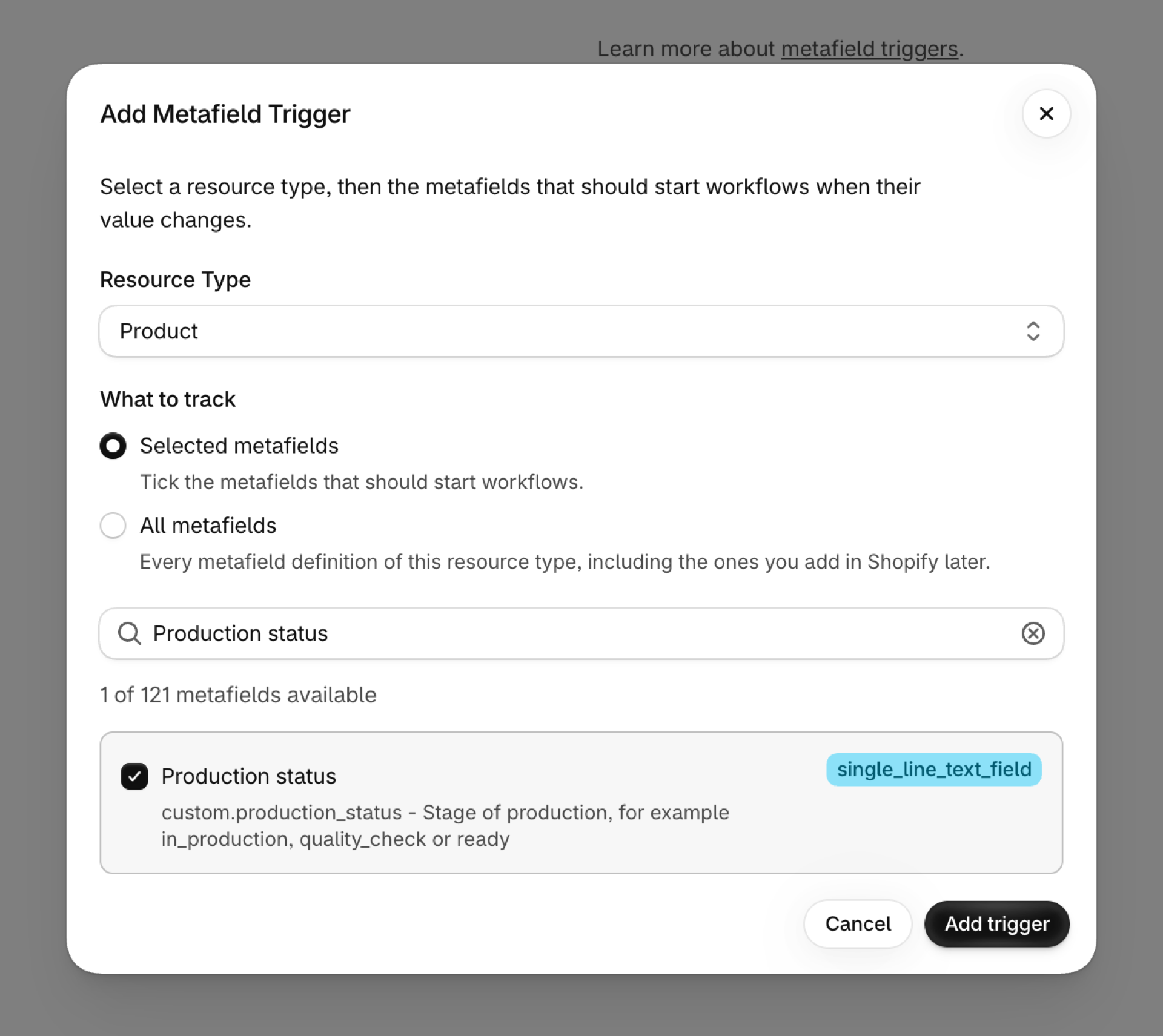
- Open Metafield Triggers in the app and click Add trigger.
- Choose the resource type Product.
- Tick the metafield, here Production status. You can tick several at once or use Select all.
- Click Add trigger.
To track every metafield of this resource type, including the ones you create later, choose All metafields instead of ticking single ones, then click Track all metafields.
The new trigger shows Initializing while the app reads the current value of the metafield on your existing products, then Active. That first reading is why the very first change already arrives with the right previous value.
If the metafield is missing from the list, click Refresh Metafields on the Metafield Triggers page: the app remembers the list of definitions for an hour.
2. What the workflow receives
Every change starts the trigger Metafield Update in Shopify Flow with these values:
| Variable | Value |
|---|---|
resourceType |
PRODUCT |
resourceId |
The ID of the product, for example gid://shopify/Product/1234567890 |
metafieldKey |
Namespace and key, here custom.production_status |
metafield.value |
The new value |
metafield.previousValue |
The value before the change, empty when the metafield was set for the first time |
metafield.type |
The type of the metafield, for example single_line_text_field |
Product Metafield Update is a second trigger for the same change. It starts in addition to Metafield Update and carries the product as a native Flow reference, so Shopify's own product actions work on it without a lookup step. Both share one event, so using both does not count twice. Switch it on from the app's Triggers page, or turn on a workflow that uses it.
3. Build the workflow
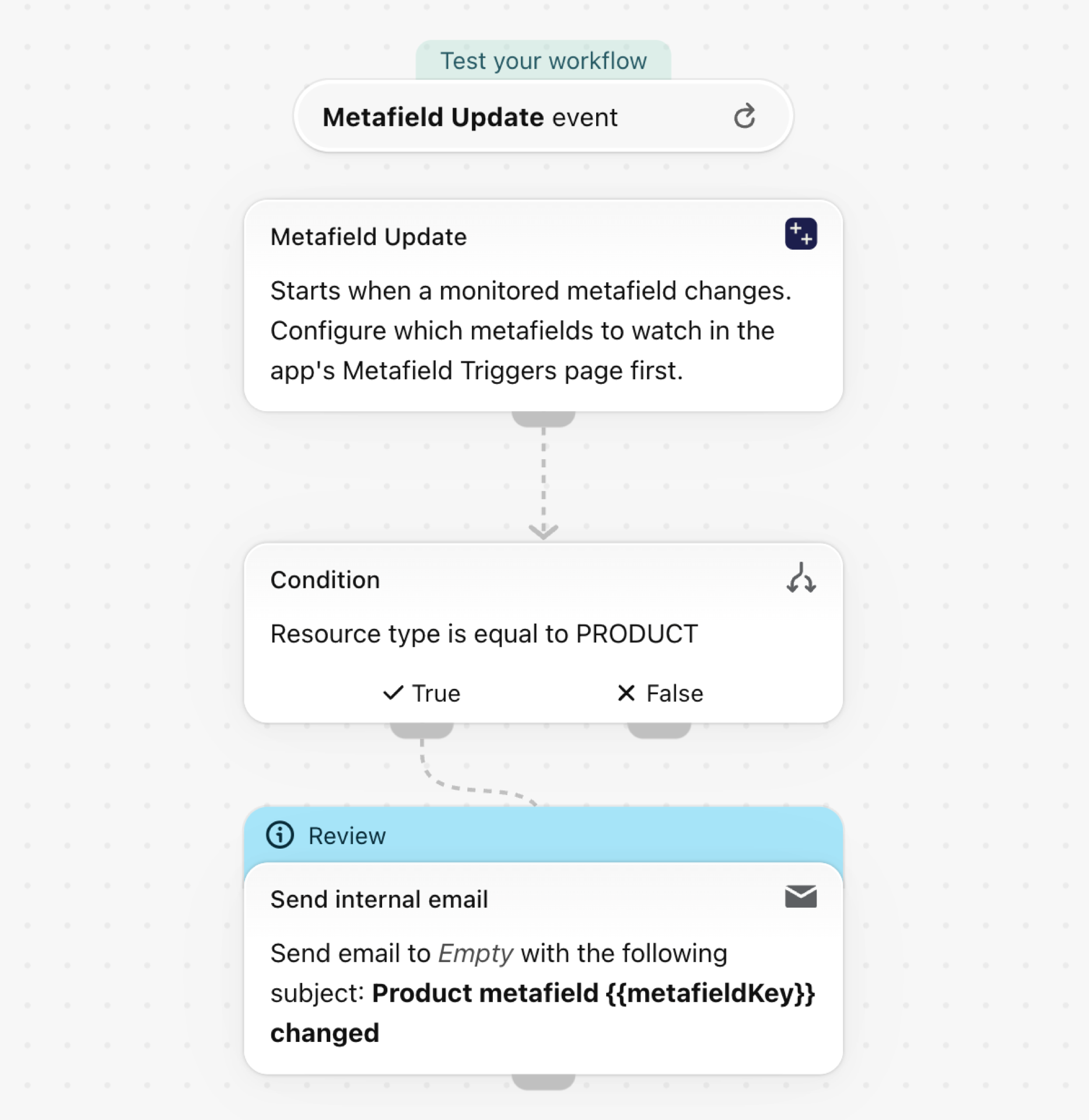
- In Shopify Flow, create a workflow and choose the trigger Metafield Update of Workflow Trigger Extensions.
- Add a Condition:
resourceTypeis equal toPRODUCT. Metafield Update starts for every resource type you track, so the condition keeps this workflow to products. When you track several metafields of the type, addmetafieldKeyis equal tocustom.production_statusas a second criterion. - Add the action you need. The example sends an internal email with the old and the new value.
Start from the example
- Download the
.flowfile attached at the bottom of this page. - In your Shopify admin open Flow, click Import and choose the file.
- Open the Send internal email step and enter the recipient. The file holds no address on purpose.
- Turn the workflow on.
Make it yours
- Add a second condition on
metafield.valueto send each stage to a different team. - Tag the product instead: add the action Add product tags and put
{{resourceId}}in its product field. - Compare
metafield.previousValuewithmetafield.valueto react only when a value goes up or down.
How fast it reacts
Shopify notifies the app when a product is saved, so the workflow usually starts within a few seconds.
More
- Metafield triggers: how metafield triggers work, for every resource type.
- Trigger Shopify Flow on product metafield changes: a worked example with a video.
- Event history and troubleshooting: see every event the app sent, with the old and the new value.