
Time-based and stock triggers from templates
Four custom trigger templates: order unfulfilled for N days, shipment not moving, a date in a metafield reached, and stock below a location's own threshold.
Shopify Flow reacts when something happens. Some of the most useful automations start when something does not happen, or when a date arrives: an order that is still not shipped after three days, a parcel that stopped moving, a release date stored in a metafield. Others need a rule a Flow condition cannot express, such as a different low-stock line for every location.
Four templates cover these cases. Each one is a custom trigger: you pick the template in the custom trigger editor, set a few values at the top of the code, test it and switch it on. You do not have to write the code yourself.
The four templates
| Template | How it runs | What it reacts to |
|---|---|---|
| Order unfulfilled for N days | On a schedule, every hour | An open order that is still not fulfilled, or only partly, the number of days you set after it was placed |
| Shipment not moving for N days | On a schedule, every hour | A shipment that is not delivered while nothing about its order has changed for the number of days you set |
| Date in a metafield reached | On a schedule, every 6 hours | A date metafield of a product or order that is reached, or that is a number of days away |
| Stock fell below a location's own threshold | On every inventory change | Available stock at a location that crosses below the threshold you set for that location |
The interval is the starting value of the template. You can change it in the editor.
Use a template
Create a custom trigger on the Triggers page, in the section Your custom triggers. Give it a name and a handle. The handle is what your workflow filters on, and it cannot be changed later.
For the three scheduled templates:
- In the section What makes this run, choose the option On a schedule.
- In the card Schedule, open the list Start from a template and choose the template. It replaces the code and sets the interval.
- Edit the values at the top of the code. They are described per template below.
- Test it. A test runs your code once, sends nothing to Shopify Flow and stores nothing, so you can repeat it as often as you like.
- Switch the trigger on and save.
For the stock template:
- In the section What makes this run, choose the option One Shopify event.
- Open the list Start from a template and choose the stock template. It picks the event Inventory Level Changed at Location and fills in the code.
- Edit the values at the top of the code.
- Capture a real event by changing the stock of a variant in your store, then run a test against it.
- Switch the trigger on and save.
Use it in Shopify Flow
All four arrive in Shopify Flow as the trigger Custom Trigger. Add it to a workflow and add a condition: the field Trigger handle equals the handle of your trigger. Every value the template sends is a field on the trigger.
The three scheduled templates also pass the order or product as the record id of the event. Add a step such as Get order data or Get product data to load the full record and work with it in the steps that follow.
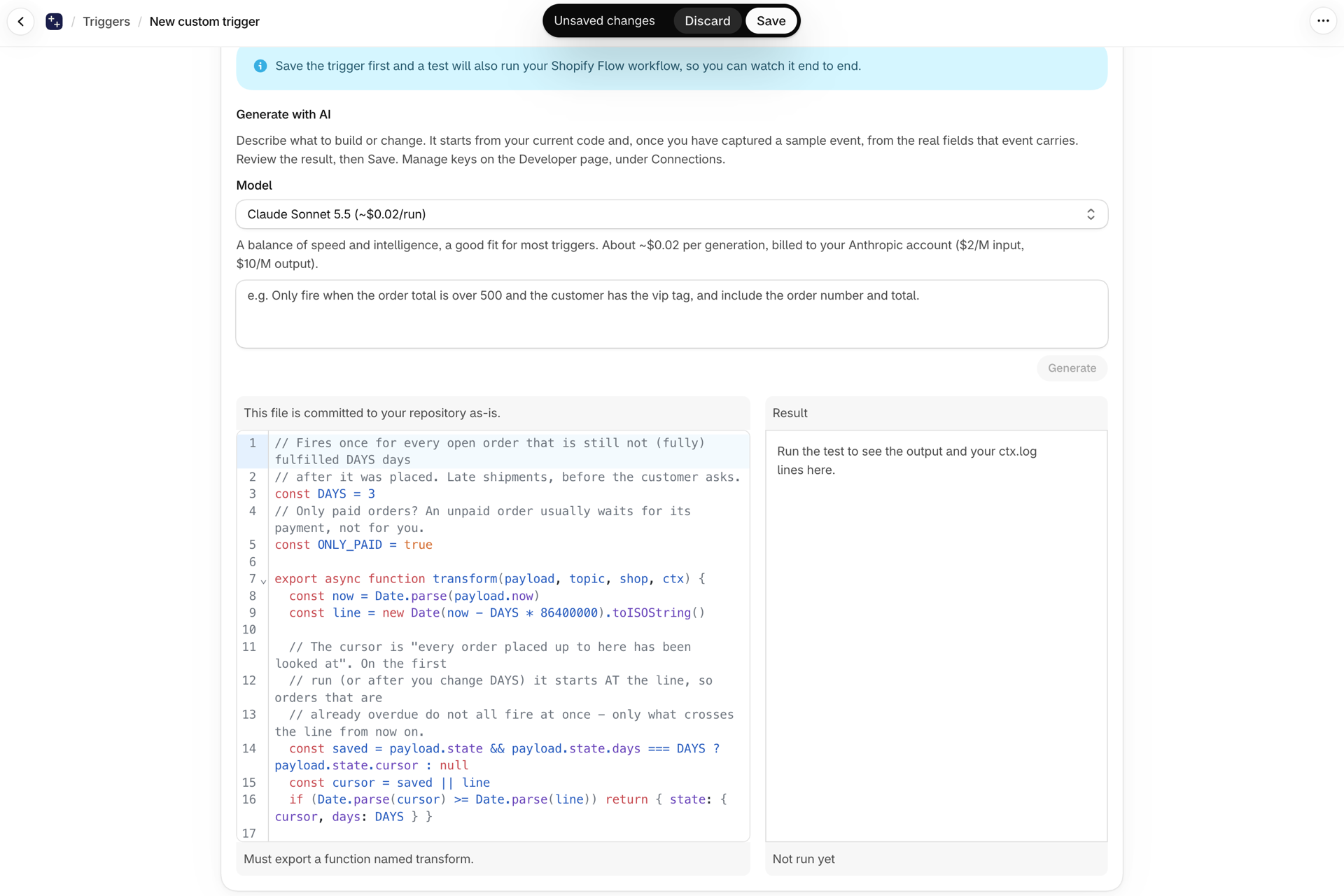
Order unfulfilled for N days
Catches late shipments before the customer asks.
| Value in the code | Starts as | Meaning |
|---|---|---|
DAYS |
3 |
Number of days after the order was placed |
ONLY_PAID |
true |
Only paid orders count. An unpaid order usually waits for its payment, not for you |
The trigger starts your workflow once for every open order that is still unfulfilled or only partially fulfilled when it reaches the age you set. An order that was fulfilled in time never starts it.
The check happens once per order, at that moment. An order that is still unfulfilled a week later does not start the workflow a second time. With the paid-only setting, an order that is paid only after that moment is not picked up either.
| Field sent to Flow | Contains |
|---|---|
name |
The order name, for example #1042 |
placedAt |
When the order was placed |
daysSinceOrder |
The age of the order in days |
fulfillmentStatus |
The fulfillment status of the order |
financialStatus |
The payment status of the order |
thresholdDays |
The number of days you set |
The order itself is passed as the record id of the event.
Shipment not moving for N days
Answers the question "where is my order" before it is asked.
| Value in the code | Starts as | Meaning |
|---|---|---|
DAYS |
5 |
Number of days without any change |
ONLY_WITH_TRACKING |
true |
Shipments without a tracking number are left out. They can never report a delivery |
DONE |
DELIVERED, PICKED_UP, CANCELED |
Shipment states that count as finished |
Shopify cannot be searched by the date a shipment last moved. The template therefore works on the order. It looks for fulfilled or partially fulfilled orders that have not been updated for the number of days you set and that still have a shipment which is not finished.
Any change to the order starts the count again. A tracking update does that, and so does an edited note or a new tag.
The trigger starts your workflow once per stalled shipment, so an order with two stuck parcels starts it twice. Up to three shipments per order are checked.
| Field sent to Flow | Contains |
|---|---|
name |
The order name |
fulfillmentId |
The id of the shipment |
shipmentStatus |
The current status of the shipment |
lastTrackingStatus |
The status of the latest tracking event |
lastMovedAt |
When the shipment last moved |
daysWithoutMovement |
Days since the shipment last moved |
shippedAt |
When the shipment was created |
estimatedDeliveryAt |
The estimated delivery date, if the carrier reports one |
carrier |
The name of the carrier |
trackingNumber |
The tracking number |
trackingUrl |
The tracking link |
thresholdDays |
The number of days you set |
The order itself is passed as the record id of the event.
Date in a metafield reached
For release dates, warranties, best-before dates, renewal dates: anything you keep as a date on a product or an order.
| Value in the code | Starts as | Meaning |
|---|---|---|
RESOURCE |
"products" |
Where the metafield lives: on products or on orders |
NAMESPACE |
"custom" |
The namespace of the metafield |
KEY |
"release_date" |
The key of the metafield |
OFFSET_DAYS |
0 |
Number of days before or after the date. See the examples below |
Three examples for the offset:
| Offset | When your workflow starts |
|---|---|
0 |
On the date itself |
-7 |
Seven days before the date |
30 |
Thirty days after the date |
The trigger starts your workflow once for every product or order whose date is due on that day. Days are UTC days. The trigger works through one day at a time, so a day it missed is caught up in order. When more than 100 records are due on one day, the rest follow on the next runs.
| Field sent to Flow | Contains |
|---|---|
name |
The product title or the order name |
date |
The date stored in the metafield |
reachedOn |
The day on which the record was due |
offsetDays |
The offset you set |
The product or order itself is passed as the record id of the event.
Stock fell below a location's own threshold
One low-stock rule per location: 20 in the warehouse, 3 in the shop.
| Value in the code | Starts as | Meaning |
|---|---|---|
THRESHOLDS |
{ "Main warehouse": 20, "Pop-up store": 3 } |
The threshold of each location, by the name of the location |
DEFAULT |
5 |
The threshold for every location that is not listed |
ALSO_WHEN_RESTOCKED |
false |
Whether your workflow also starts when stock is back at or above the threshold |
To ignore one location, give it the threshold null. To watch only the listed locations, set the default threshold to null.
The trigger starts your workflow once, at the crossing: stock was at or above the threshold before the change and is below it afterwards. It does not react to every sale while stock is already low. That is possible because the app knows the stock level before and after each change.
Write the location names exactly as they appear in your Shopify admin under Settings > Locations.
This template needs the trigger Inventory Level Changed at Location switched on, with its permissions granted. That is what makes the app follow stock levels. See The Triggers page (formerly Settings) and Permissions and data access.
| Field sent to Flow | Contains |
|---|---|
event |
What happened: stock fell below the threshold, or stock is back |
productTitle |
The product title |
variantTitle |
The variant title |
sku |
The SKU of the variant |
location |
The name of the location |
locationId |
The id of the location |
oldAvailable |
Available stock before the change |
newAvailable |
Available stock after the change |
threshold |
The threshold that applied |
The field for what happened holds one of two values:
| Value | Meaning |
|---|---|
below |
Stock fell below the threshold |
restocked |
Stock is back at or above the threshold |
Why did my workflow not start after I switched the trigger on?
The first run of a scheduled template only remembers its starting point. The trigger reacts to orders, shipments and dates that cross the line after that, not to the ones that were already past it.
Can I run the check more often than every hour?
Yes, the interval is yours to choose, from every 30 seconds to once a day. A shorter interval means more runs, and every run counts toward your plan. For a rule measured in days, every hour is usually more than enough.
The date trigger reports an error. What is wrong?
Almost always the metafield definition. It has to be of the type Date and have the option Filtering switched on under Settings > Custom data. Also check that the namespace and the key in the code match the definition exactly.
Can a template change my orders or products?
No. A custom trigger only reads. To tag the order, send an email or update a metafield, add those actions to the workflow that starts with the trigger.
A shipment was stuck for longer than the days I set, and my workflow did not start. Why?
The count is measured from the last change to the order. If the order was edited in the meantime, by staff, by another app or by a tracking update, the count started again from that moment.
Next steps
- Custom triggers - the editor, testing, and how custom triggers work in Flow.
- Generate trigger code with AI - describe a different rule and let AI write the code.
- Plans and usage - how runs and events count toward your plan.
- Inventory triggers, step by step - the built-in inventory triggers, step by step.