
Redirect old collection URLs when a collection handle changes
Auto-redirect old collection URLs to new ones in Shopify Flow when a handle changes, so menus, emails and ads keep working.
When a collection's URL handle changes, create a URL redirect from the old collection URL to the new one. Collection URLs sit in menus, emails and ads, so a missed redirect costs traffic.
One trigger, built-in Shopify actions only, no other app needed. Nothing in it is specific to a store, so it works as soon as it is imported.
What it needs
- The app's permission Product, Variant & Collection Data Access. See Permissions and data access.
- Nothing else: turning the workflow on switches the trigger Collection Handle Changed on in the app.
Install the Workflow Trigger Extensions app and grant Product, Variant & Collection Data Access on its Permissions page. Turning this workflow on switches the trigger on in the app.
Get the workflow
- Download the
.flowfile attached at the bottom of this page. - In your Shopify admin open Flow, click Import and choose the file.
- Check the steps, then click Turn on workflow.
The file is an export from Shopify Flow itself. Do not edit it by hand; change the workflow in Flow after importing it.
How it works
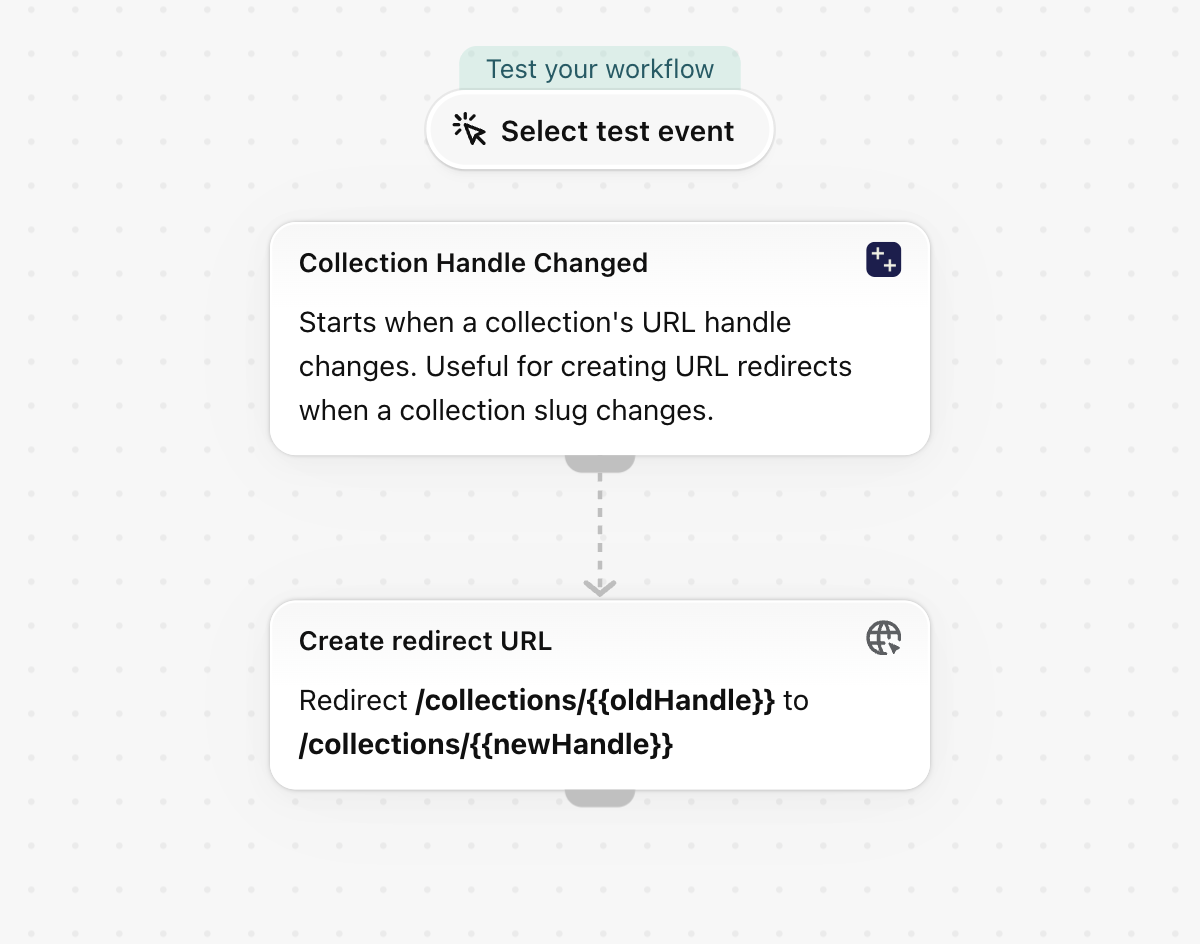
- Collection Handle Changed starts the workflow with
oldHandleandnewHandle. - Create redirect URL redirects
/collections/{{oldHandle}}to/collections/{{newHandle}}.
Make it yours
- Collection URLs are linked from menus, emails and ads: consider a second action that tells marketing which landing page moved.
Next steps
- Collection triggers, step by step - every field this trigger sends, with more examples.
- Workflow templates - all templates.
- Event history and troubleshooting - check that the trigger fired.