
Custom Storefront Triggers
Turn any custom storefront event, like a cart drawer or wishlist add, into a Shopify Flow trigger with one line of JavaScript.
The built-in storefront triggers cover the events Shopify reports. A Custom Storefront Trigger covers everything else that happens on your storefront: you publish an event from your theme with one line of JavaScript, and it becomes a trigger you can use in Shopify Flow.
The clearest example is the cart drawer. Shopify's cart view event fires on the /cart page, and most modern themes never navigate there - they slide a drawer open instead. Shopify reports nothing, so no app can see it. Publishing your own event when the drawer opens closes that gap.
Other things stores use it for:
- A wishlist add or a notify-me click, neither of which Shopify reports.
- A size guide or returns policy opened, as a signal about a product.
- A variant change in the picker, which is not a new page view (see Storefront triggers).
- Anything your theme or a third-party app already knows about and Shopify does not.
How it works
- Create the trigger in the app and give it an event name, for example
cart_drawer_opened. Like every storefront trigger it needs Storefront Behaviour Access, granted once on the Permissions page. - Copy the one-line snippet the app shows you and paste it into your theme where that thing happens. If you are not sure what to paste or where, Generate trigger code with AI writes the snippet for your theme from a plain-English description.
- Write a transform if you want to filter or reshape what gets sent, or leave it empty to forward everything.
- Switch it on, then add Custom Storefront Trigger in Flow and branch on the event name.
The snippet is the whole integration on the theme side:
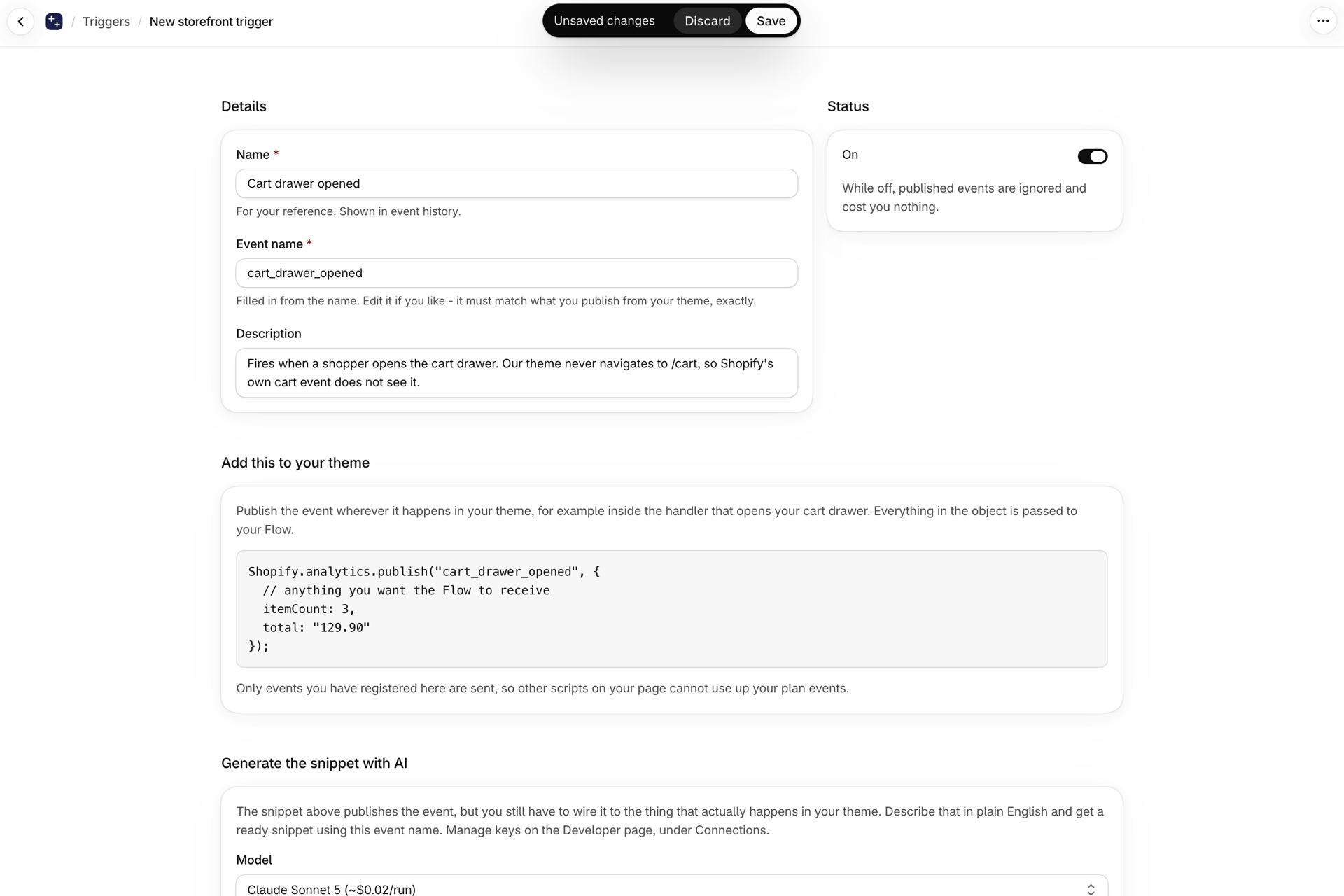
Shopify.analytics.publish("cart_drawer_opened", {
  // anything you want the Flow to receive
  itemCount: 3,
  total: "129.90"
});Naming the event
The event name is what your Flow workflow branches on, so pick something readable and leave it alone once workflows use it.
Names may contain letters, numbers, underscores and hyphens, must start with a letter or a number, and can be up to 64 characters. The app slugifies what you type, so Cart drawer opened becomes cart_drawer_opened.
The name is namespaced internally, so it can never collide with a Shopify event or with a webhook custom trigger of the same name.
Filtering and reshaping
The data you pass as the second argument arrives in Flow as the trigger's output. If that is all you need, you are done.
When you want to fire only in some cases, or send different fields than the theme published, write a transform - the same JavaScript module used by Custom triggers. Return an object to fire, return null to skip:
export async function transform(payload, topic, shop, ctx) {
  // Anything you published is on `payload`.
  if ((payload.itemCount || 0) < 2) return null;

  return {
    itemCount: payload.itemCount,
    total: payload.total,
    // Present only when the shopper is signed in.
    customerId: payload.customerId,
  };
}
Using it in Shopify Flow
Every Custom Storefront Trigger arrives in Flow as the same trigger: Custom Storefront Trigger. Add it to a workflow, then add a condition on eventName equals the name you chose.
That is what lets one Flow trigger back all of your storefront events. The trigger also carries the name you gave it in the app, and your transform's output.
It is deliberately separate from Custom Trigger, which backs the webhook-based Custom triggers. The two differ in a way worth knowing: a webhook custom trigger runs on our servers and is reliable, while a storefront event depends on a shopper's browser reaching us and on their analytics consent.
What not to send
The second argument to publish is entirely under your control, which means it is your responsibility to keep personal data out of it.
Send identifiers and facts: product and variant ids, quantities, prices, the name of the thing that happened. The signed-in customer's id is added for you when there is one, so you never need to pass it yourself.
Do not send names, email addresses, phone numbers or postal addresses. Your workflow can look any of those up from the customer id in Flow, so there is nothing to gain by putting them into a storefront event, and doing so makes an analytics event into a personal-data one.
Does it use my plan allowance?
Yes. Every event that reaches us counts, including the ones your transform skips by returning null - the same rule as Custom triggers. Events dropped in the browser for missing consent never reach us and never count.
Because you decide where the snippet goes, you control the volume directly. A drawer-open event fires far less often than a product view.
Can I publish the same event from more than one place?
Yes. The name is what matters, not where it is published from. Passing something in the payload to say where it came from is a good idea if you want the workflow to tell them apart.
Will two drawer opens count as one event?
No. Deliberate events are kept distinct, because publishing twice usually means it genuinely happened twice. This is different from the built-in triggers, which collapse repeats of the same page view.
Can I change the event name later?
You can, but your Flow workflow filters on it, so changing the name stops that workflow running until you update the condition - and you have to update the snippet in your theme to match. Treat the name as fixed once a workflow uses it.
How do I test it before it is live on my storefront?
The trigger's page in the app has a test that runs your transform and fires your Flow workflow, so you can watch it run end to end without touching your theme. Testing does not use your allowance.
Once the snippet is in your theme, the Event History page shows the real events as they arrive.
Does it work on checkout pages?
Publishing from your own theme code covers your storefront. Checkout is rendered by Shopify and you cannot add theme code to it, so use the built-in Checkout Error Shown and Checkout Discount Code Rejected triggers there instead.
Next steps
- Storefront triggers - the built-in storefront triggers and how the pixel works.
- Generate trigger code with AI - let AI write the theme snippet or the transform for you.
- Custom triggers - the same idea for Shopify webhook events, with server-side reliability.
- Plans and usage - what counts as an event.