
Inventory triggers, step by step
Step-by-step Shopify Flow tutorials for per-location inventory changes, out of stock, back in stock and variant cost changes.
Shopify's own inventory triggers work on the variant total and carry no location. These four know where: each event names the location and carries the quantity before and after. The fourth one watches the cost per item, which lives on the inventory item as well.
On this page: Inventory Level Changed at Location, Out of Stock at Location, Back in Stock at Location, Product Variant Cost Changed
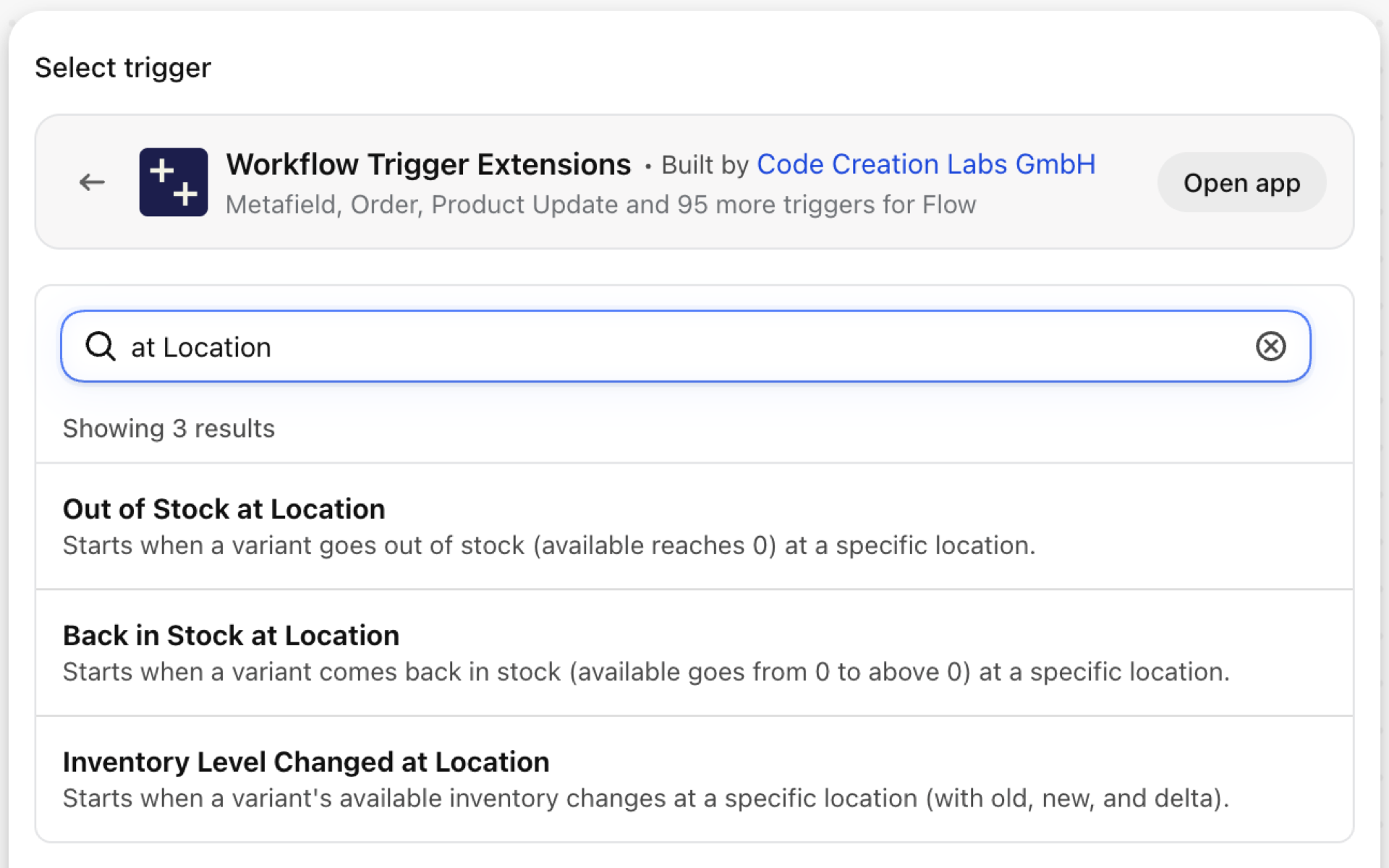
Inventory Level Changed at Location
Fires whenever the available quantity of a variant changes at a location: a sale, a restock, a transfer, a manual correction.
| Fires from | Shopify webhook plus change detection |
| Permission | Inventory Data Access + Product, Variant & Collection Data Access |
| Switched on | Turning on a Flow workflow that uses it switches it on. Its own switch is on the app's Triggers page |
Use it for
- Low-stock alerts per location instead of per variant.
- Forward every stock movement to an ERP or a reporting sheet.
- React to large single drops that look like an error.
What Inventory Level Changed at Location sends to your workflow
| Variable in Flow | Type | What it holds |
|---|---|---|
product |
Product (Shopify) | The product whose variant inventory changed. A full Shopify product, so all of its fields and Flow's own product actions are available. |
inventoryLevel |
Object | The location, variant/SKU, and old/new/delta available quantity |
inventoryLevel.locationId |
ID | |
inventoryLevel.locationName |
Text | |
inventoryLevel.sku |
Text | |
inventoryLevel.variantId |
ID | |
inventoryLevel.variantTitle |
Text | |
inventoryLevel.oldAvailable |
Number | |
inventoryLevel.newAvailable |
Number | |
inventoryLevel.delta |
Number | |
eventId |
Text | The id of this event. Search for it in the app's Event History to see exactly what was sent. |
Example: Low-stock alert for one warehouse
- Pick Inventory Level Changed at Location as the trigger.
- Add a Condition with three criteria:
inventoryLevel.locationNameEqual toMain warehouse,inventoryLevel.newAvailableLess than5, andinventoryLevel.oldAvailableGreater than or equal to5. - Add Send internal email:
{{product.title}} / {{inventoryLevel.variantTitle}} ({{inventoryLevel.sku}}) is down to {{inventoryLevel.newAvailable}} at {{inventoryLevel.locationName}}. - Turn the workflow on.
Out of Stock at Location
Fires when the available quantity of a variant reaches zero at one location. The variant may still be in stock elsewhere.
| Fires from | Shopify webhook plus change detection |
| Permission | Inventory Data Access + Product, Variant & Collection Data Access |
| Switched on | Turning on a Flow workflow that uses it switches it on. Its own switch is on the app's Triggers page |
Use it for
- Tell a store manager that a shelf is empty while the warehouse still has stock.
- Request a transfer between locations.
- Switch a product to pre-order when the last location runs out.
What Out of Stock at Location sends to your workflow
| Variable in Flow | Type | What it holds |
|---|---|---|
product |
Product (Shopify) | The product whose variant went out of stock at the location. A full Shopify product, so all of its fields and Flow's own product actions are available. |
inventoryLevel |
Object | The location, variant/SKU, and old/new available quantity |
inventoryLevel.locationId |
ID | |
inventoryLevel.locationName |
Text | |
inventoryLevel.sku |
Text | |
inventoryLevel.variantId |
ID | |
inventoryLevel.variantTitle |
Text | |
inventoryLevel.oldAvailable |
Number | |
inventoryLevel.newAvailable |
Number | |
inventoryLevel.delta |
Number | |
eventId |
Text | The id of this event. Search for it in the app's Event History to see exactly what was sent. |
Example: Request a transfer when a store runs out
- Pick Out of Stock at Location as the trigger.
- Add a Condition:
inventoryLevel.locationNameNot equal toMain warehouse. - Add Send internal email to logistics:
{{inventoryLevel.locationName}} is out of {{product.title}} / {{inventoryLevel.variantTitle}}. - Turn the workflow on.
Back in Stock at Location
Fires when the available quantity of a variant goes from zero to above zero at a location.
| Fires from | Shopify webhook plus change detection |
| Permission | Inventory Data Access + Product, Variant & Collection Data Access |
| Switched on | Turning on a Flow workflow that uses it switches it on. Its own switch is on the app's Triggers page |
Use it for
- Send back-in-stock notifications or tell sales a waiting order can ship.
- Remove a
sold-outtag or switch ads back on.
What Back in Stock at Location sends to your workflow
| Variable in Flow | Type | What it holds |
|---|---|---|
product |
Product (Shopify) | The product whose variant came back in stock at the location. A full Shopify product, so all of its fields and Flow's own product actions are available. |
inventoryLevel |
Object | The location, variant/SKU, and old/new available quantity |
inventoryLevel.locationId |
ID | |
inventoryLevel.locationName |
Text | |
inventoryLevel.sku |
Text | |
inventoryLevel.variantId |
ID | |
inventoryLevel.variantTitle |
Text | |
inventoryLevel.oldAvailable |
Number | |
inventoryLevel.newAvailable |
Number | |
inventoryLevel.delta |
Number | |
eventId |
Text | The id of this event. Search for it in the app's Event History to see exactly what was sent. |
Example: Remove the sold-out tag when stock returns
- Pick Back in Stock at Location as the trigger.
- Add Remove product tags with
sold-out. - Optional: add Send internal email with
{{inventoryLevel.newAvailable}}units at{{inventoryLevel.locationName}}. - Turn the workflow on.
Product Variant Cost Changed
Fires when the cost per item of a variant changes, with the old and new cost, delta, percentChange and direction.
| Fires from | Shopify webhook plus change detection |
| Permission | Inventory Data Access + Product, Variant & Collection Data Access |
| Switched on | Turning on a Flow workflow that uses it switches it on. Its own switch is on the app's Triggers page |
Use it for
- Re-check margins when a supplier raises prices.
- Flag variants whose cost now exceeds a share of the price.
What Product Variant Cost Changed sends to your workflow
| Variable in Flow | Type | What it holds |
|---|---|---|
product |
Product (Shopify) | The product whose variant cost changed. A full Shopify product, so all of its fields and Flow's own product actions are available. |
variantCostChange |
Object | The variant/SKU and the old and new cost per item |
variantCostChange.variantId |
ID | |
variantCostChange.variantTitle |
Text | |
variantCostChange.sku |
Text | |
variantCostChange.oldCost |
Money (amount, currencyCode) | |
variantCostChange.newCost |
Money (amount, currencyCode) | |
variantCostChange.delta |
Number | New value minus old value. Null when either side is unknown |
variantCostChange.percentChange |
Number | Change as a percentage of the old value (-12.5 = dropped by 12.5 percent). Null when the old value is 0 or unknown |
variantCostChange.direction |
Text | increase, decrease or unchanged |
eventId |
Text | The id of this event. Search for it in the app's Event History to see exactly what was sent. |
Example: Review the price when cost rises by more than 5 percent
- Pick Product Variant Cost Changed as the trigger.
- Add a Condition:
variantCostChange.percentChangeGreater than5. - Add Add product tags with
margin-reviewand Send internal email with{{variantCostChange.oldCost.amount}} -> {{variantCostChange.newCost.amount}}for{{variantCostChange.sku}}. - Turn the workflow on.
Next steps
All four need Inventory Data Access and Product Data Access (the event carries the product as a reference). Granting Inventory access also asks for Locations access, so events can name the location.
- Complete trigger reference - every trigger on one page.
- Choosing the right trigger - which one fits your case.
- Custom triggers - when no built-in trigger fits, write your own.
- Event history and troubleshooting - see what fired and what it carried.