
Remove the sold out tag when stock returns at a location
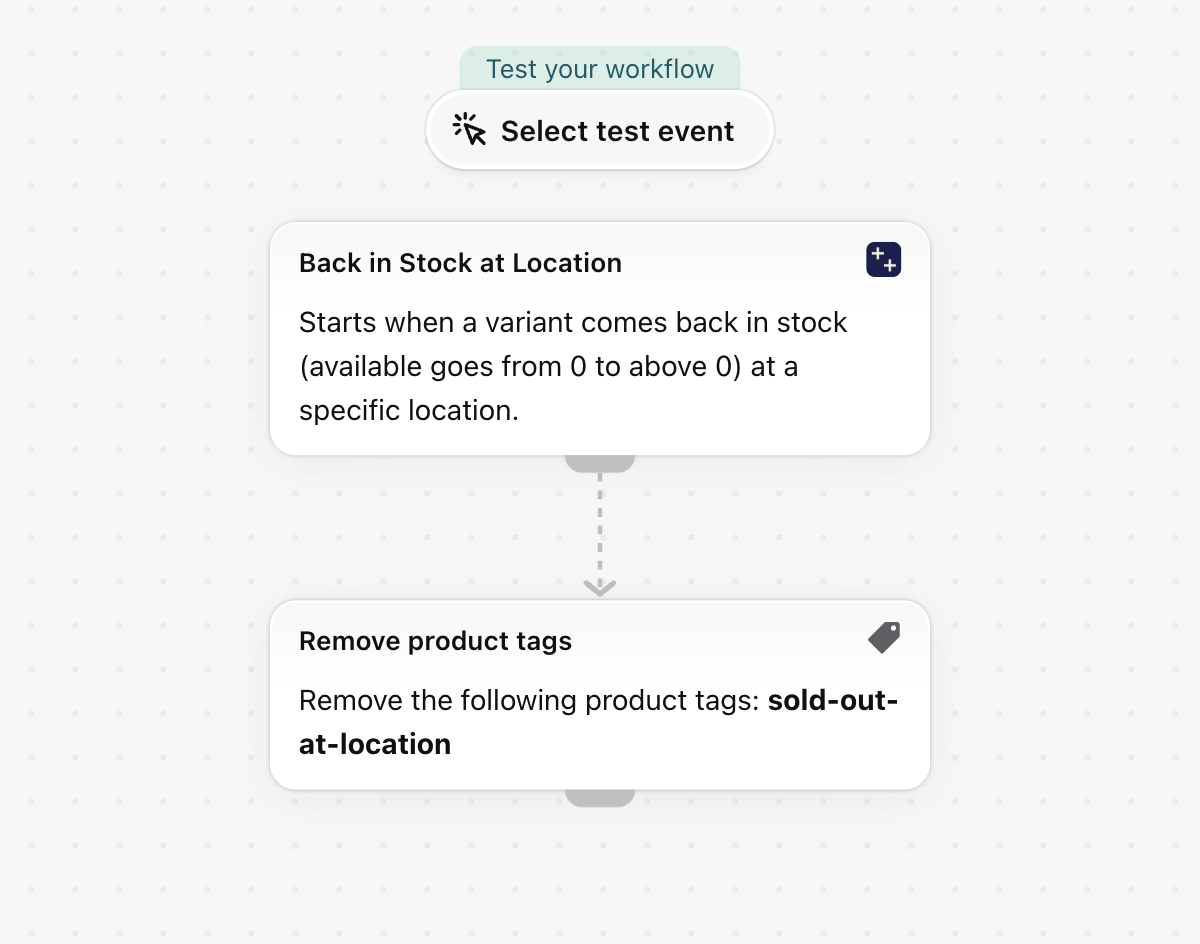
When a variant comes back in stock at a location, remove the tag sold-out-at-location from its product. Pairs with the template that adds the tag.
When a variant comes back in stock at a location, remove the tag sold-out-at-location from its product. Pairs with the template that adds the tag.
One trigger, built-in Shopify actions only, no other app needed. Nothing in it is specific to a store, so it works as soon as it is imported.
What it needs
- The app's permission Inventory Data Access + Product, Variant & Collection Data Access. See Permissions and data access.
- Nothing else: turning the workflow on switches the trigger Back in Stock at Location on in the app.
Install the Workflow Trigger Extensions app and grant Inventory Data Access and Product, Variant & Collection Data Access on its Permissions page. Turning this workflow on switches the trigger on in the app.
Get the workflow
- Download the
.flowfile attached at the bottom of this page. - In your Shopify admin open Flow, click Import and choose the file.
- Check the steps, then click Turn on workflow.
The file is an export from Shopify Flow itself. Do not edit it by hand; change the workflow in Flow after importing it.
How it works
- Back in Stock at Location fires when a variant goes from zero to above zero at a location.
- Remove product tags takes
sold-out-at-locationoff the product.
Make it yours
- Add Send internal email to tell sales that a waiting order can ship.
Next steps
- Inventory triggers, step by step - every field this trigger sends, with more examples.
- Workflow templates - all templates.
- Event history and troubleshooting - check that the trigger fired.