

Trigger a Shopify Flow when a discount expires
Why use the discount expiry trigger?
If a promotion ends at midnight but your homepage banner still shows the next morning, shoppers may try a code that no longer works. That usually leads to failed checkouts and avoidable support tickets.
The Discount Expired trigger helps prevent that. When a discount expires, the app can start a Shopify Flow workflow automatically. In one common setup, the workflow removes the expired discount code from a Shop metafield, which also removes the promotional banner from the storefront.
Video Guide
You can see the whole process in video.
What this setup does
- Watches for discounts that move from active to expired
- Starts a Shopify Flow workflow using the Discount Expired trigger
- Lets you remove or update storefront content that depends on the expired discount
- Helps keep homepage banners, announcement bars, and metafield-driven promotions in sync
Before you begin
The trigger needs the app's Discount Data Access permission. You do not have to grant it up front: the app asks for it when you switch the trigger on.
Set up the trigger
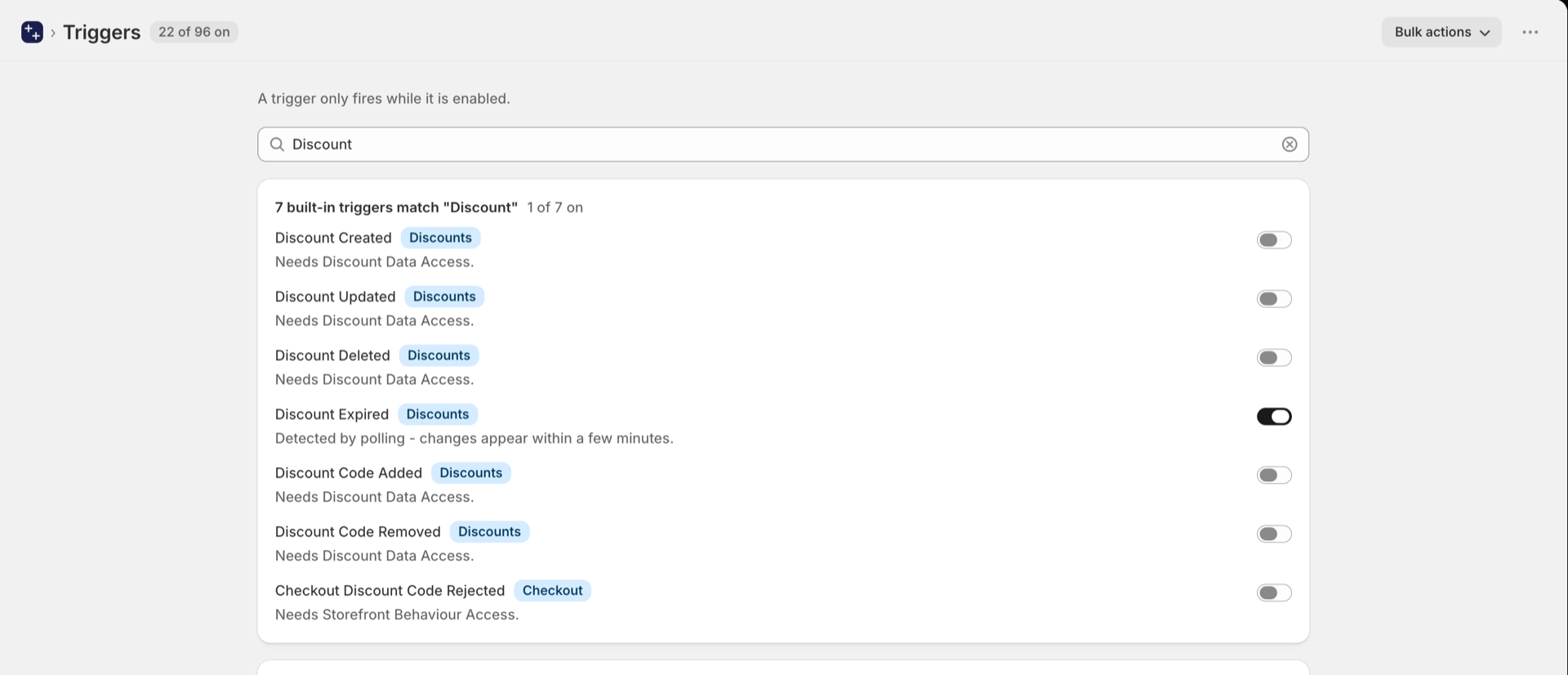
In the app, open Triggers and type Discount into the search field. Switch on Discount Expired.
If the app does not have Discount Data Access yet, Shopify asks for it in the same moment - approve the dialog and the trigger is on. Turning on a Shopify Flow workflow that starts with this trigger switches it on as well.
The app now checks your discounts every few minutes and starts your Shopify Flow workflow when one has expired.
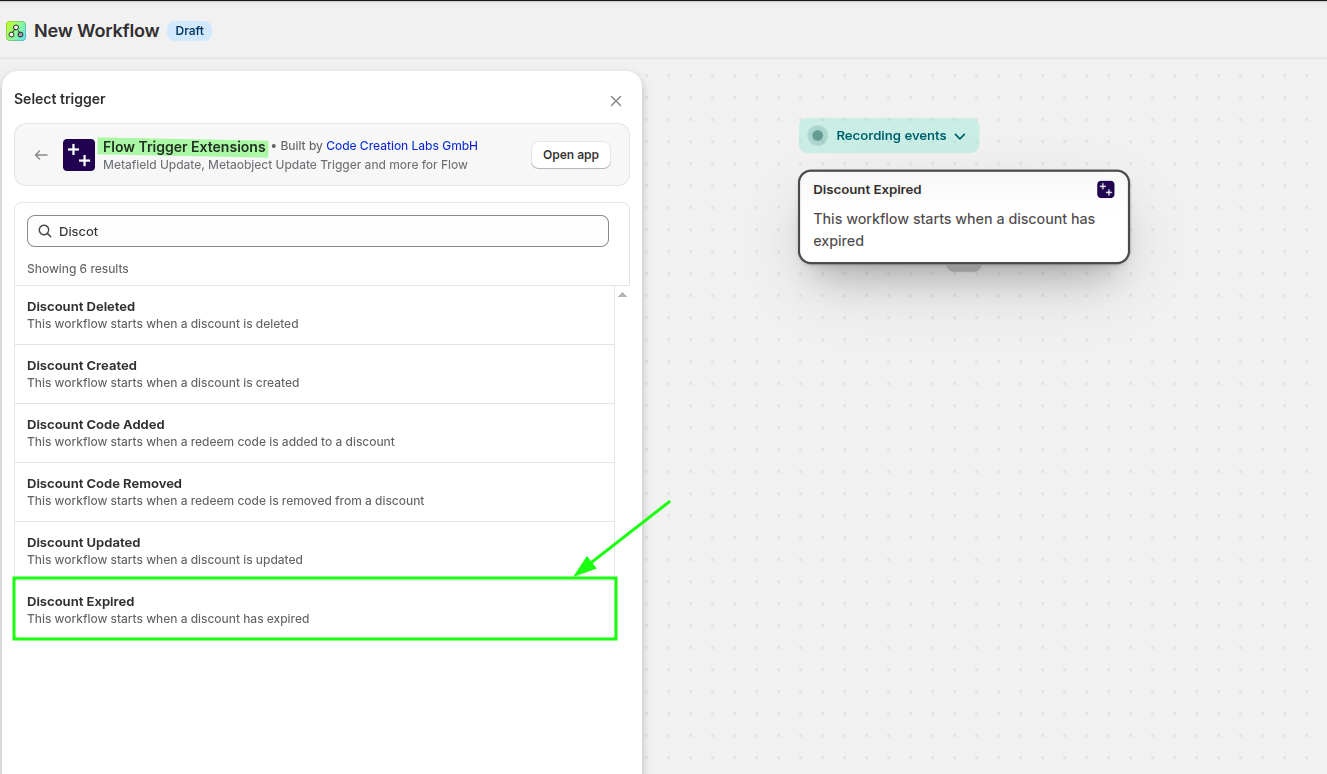
Open Shopify Flow and create a new workflow. In the trigger picker, choose Workflow Trigger Extensions, then select Discount Expired.
This trigger appears as Discount Expired with the description This workflow starts when a discount has expired.
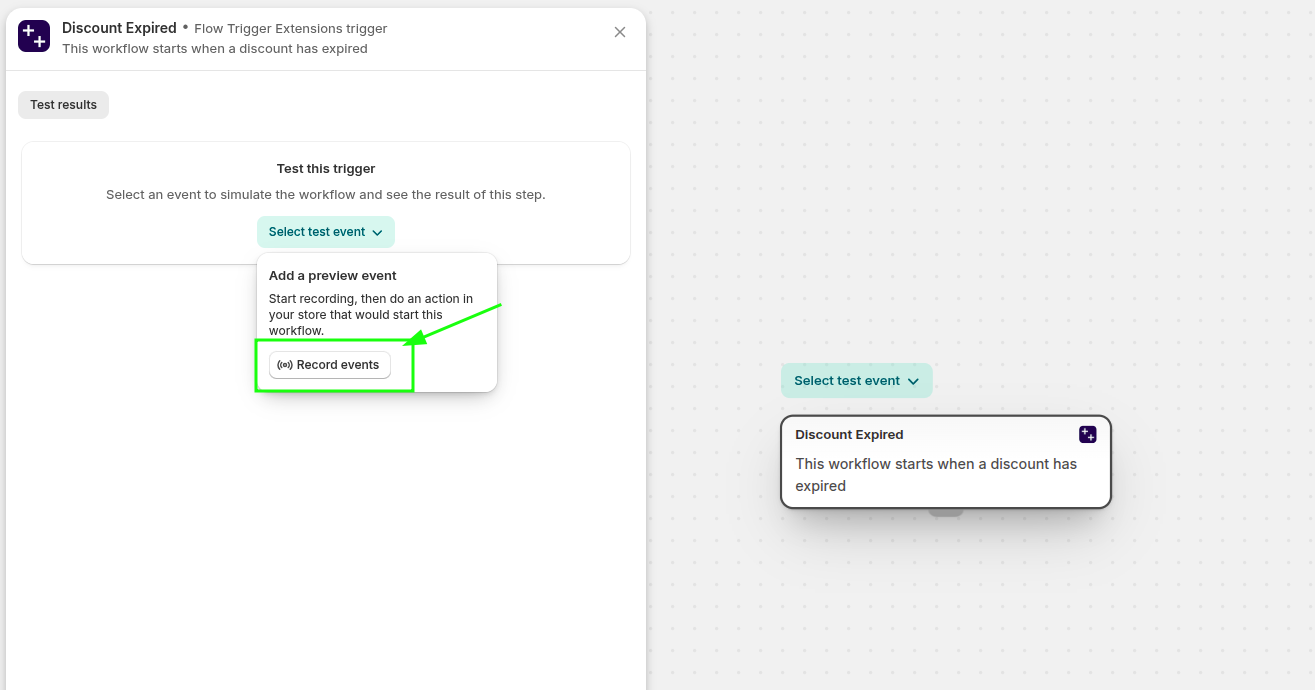
In the workflow editor, use Select test event and then click Record events. This captures a real event so you can test the workflow with actual discount expiry data. You can explicitly create a test discount and then select the end data and end time from past, this will expire the disocunt and you will be able to see the event.
Then in slack, create a workflow that starts with webhook and you can configure the variables here, then send message to specific slack channel when this webhhok is fired. We will make request to this webhook with discount data from the Shopify flow when discount is triggered.
Then in the shopify flow, you can make request to slack webhook with discount data. If you are using the basic shopify plan then HTTP request option is not available in Shopify flow. You can use flow action extension to send HTTP request. I have used same flow action extension in the flow to send http post request to the slack webhook with deiscount data.
Now you can turn on the shopify flow and test the flow by explictly expiring a discount in Shopify. In the slack, you will be able to see the message like this:
In the events history, you can see the discount expired event and payload like this:
Example: remove an expired homepage banner
A common use case is removing a storefront banner that is powered by a Shop metafield.
- You store the active promotion code in a Shop metafield.
- Your theme reads that metafield and shows the banner on the homepage.
- When the discount expires, the Discount Expired trigger starts your Shopify Flow workflow.
- The workflow removes the expired discount code from the Shop metafield.
- Because the metafield is now empty or updated, the banner no longer appears on the storefront.
Expected result
After setup is complete:
- The app detects when a discount expires
- Shopify Flow starts your Discount Expired workflow automatically
- Your follow-up actions can remove outdated promotional content, update metafields, or clean up expired campaign data
Troubleshooting
The workflow never starts. In the app, open Triggers and check that Discount Expired is switched on, then open Permissions and check that Discount Data Access is granted. A trigger that is on without its permission cannot fire.
It starts late. Expiry is detected by checking your discounts every few minutes, so the workflow starts a few minutes after the end time, not on the second.
You cannot find the trigger in Flow. When creating the workflow, choose Workflow Trigger Extensions as the app source, then search for Discount Expired.
You want to test it. In Shopify Flow, open the trigger step, click Select test event, and use Record events so the workflow can capture a real example event.