
Run a trigger for records you already have
Run a Shopify Flow trigger once for every product, order, customer, draft order or collection you already have, or for one record from its admin page.
A trigger fires when something changes. A workflow you build today therefore never sees the orders, products and customers that were already in your store, unless each of them happens to change. Workflow Trigger Extensions gives you two ways to start a trigger without waiting for a change:
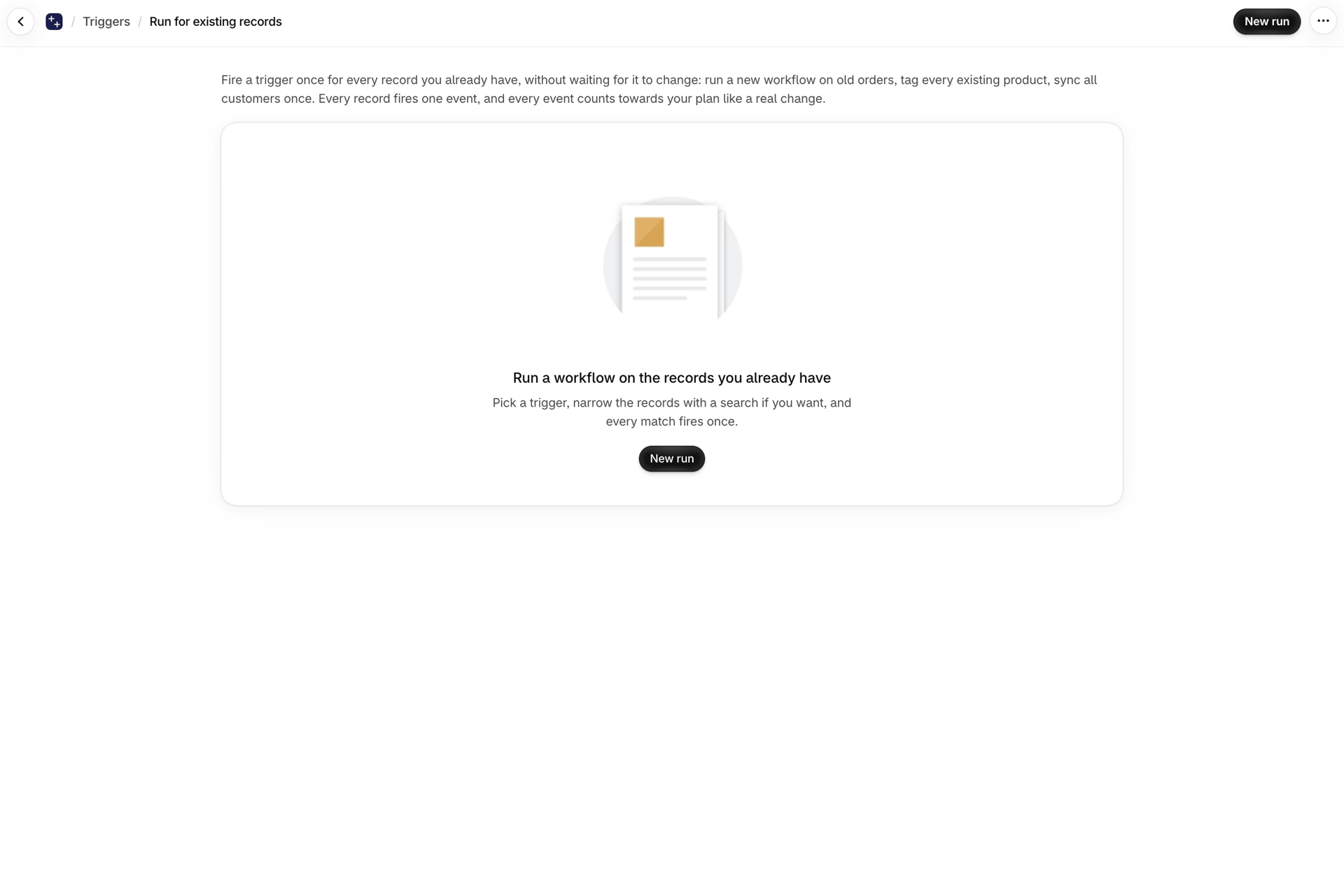
- The page Run for existing records sends one event for every record you already have, or only for the records a search finds. Use it to run a new workflow on old orders, tag every existing product, or sync all customers once.
- For a single record, the block of the app on that record's page in the Shopify admin has a button named Fire trigger now.
Both send a real event to Shopify Flow: every active workflow that starts with the trigger runs once per record, and every event counts toward your plan like a real change.
Which triggers can do this
Five triggers can be run this way. Each of them sends one event for every record of its type:
| Trigger | Record type |
|---|---|
| Product Update | Products |
| Order Update | Orders |
| Customer Update | Customers |
| Draft Order Update | Draft orders |
| Collection Update | Collections |
These five triggers send the record itself to Shopify Flow, so an event can be made for any record at any time. Other triggers, for example Product Tags Added or Order Note Changed, describe a change with a value before and a value after. A record that did not change has neither, so those triggers cannot be started this way.
Run for existing records
- Open the Triggers page in the app and click the button Run for existing records.
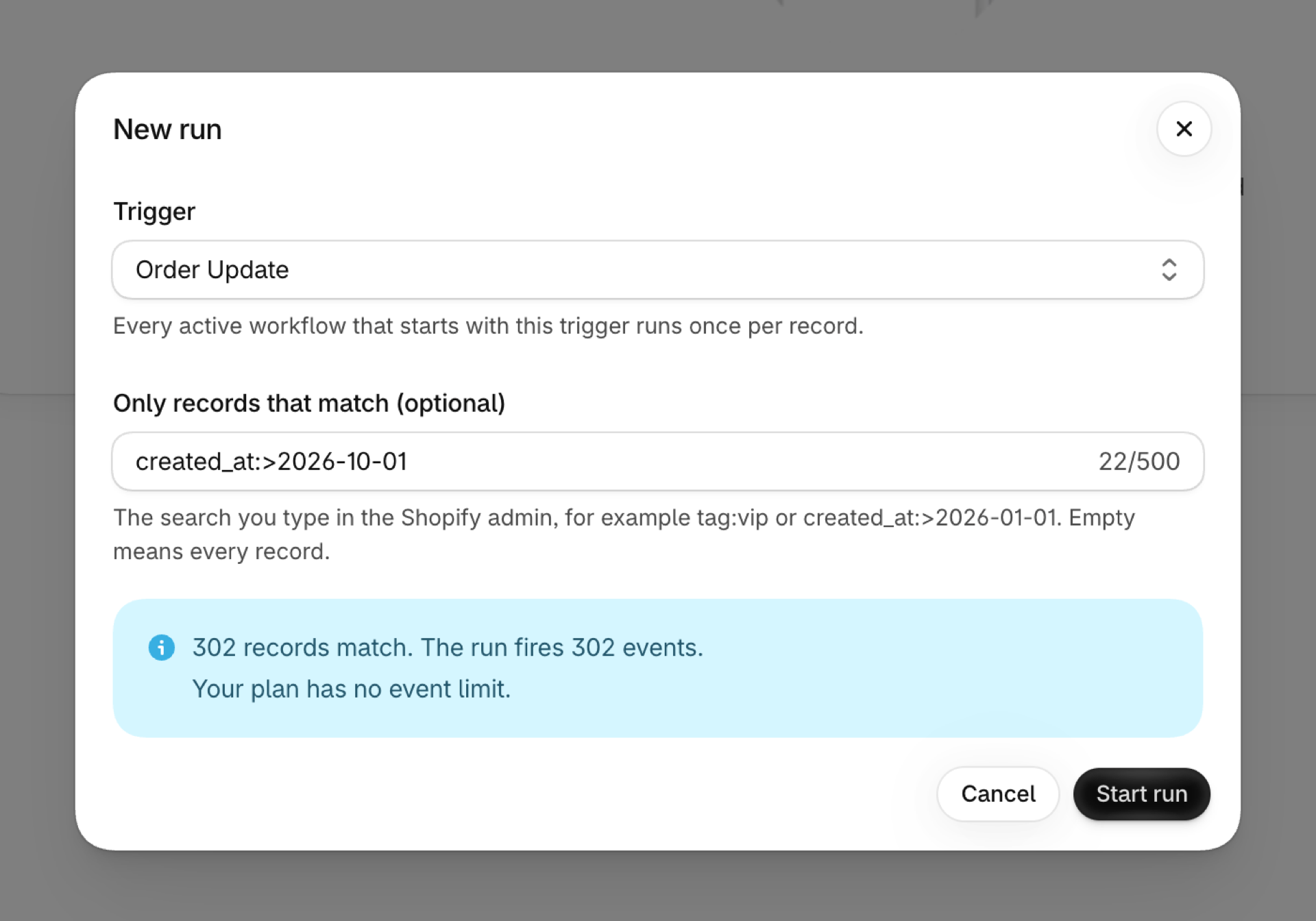
- Click the button New run.
- In the field Trigger, pick the trigger you want to run. The trigger has to be switched on. For a trigger that is switched off, the dialog tells you to switch it on first.
- Optionally fill in the field Only records that match. It takes the same search text you type in the Shopify admin. Two examples:
tag:vip,created_at:>2026-01-01. Leave the field empty to include every record. - Click the button Count records. The app shows how many records match, how many events the run sends, and how many events your plan has left in the current 30 days.
- Click the button Start run.
The run appears in the list Recent runs with its trigger, its search, the number of records processed so far and its status. The status goes from Waiting to Running to Done. The list updates by itself while a run is in progress. You can leave the page, the run carries on.
Stopping a run
Click the button Stop next to a run that is waiting or running. The run ends after the batch of up to 100 records it is working on, so a few more events can still be sent. Events that were already sent stay sent: your workflows have run for them and they have counted.
A run can also stop by itself. Its status then says why:
| Status | What happened |
|---|---|
| Stopped: plan limit reached | Other events used up your plan while the run was in progress |
| Stopped: permission missing | The permission for these records was no longer granted |
| Stopped: could not finish | The run ran into an error. The progress column shows how far it got |
| Stopped | You stopped the run |
Limits
- One run at a time per store. Wait for a run to finish, or stop it, before you start the next one.
- Up to 50,000 records per run. If more records match, narrow the search and run it in parts, for example one year of orders at a time.
- The search text can be up to 500 characters long.
- A run is started by hand in the app. It cannot be scheduled or started through the Developer API.
Start a trigger for one record
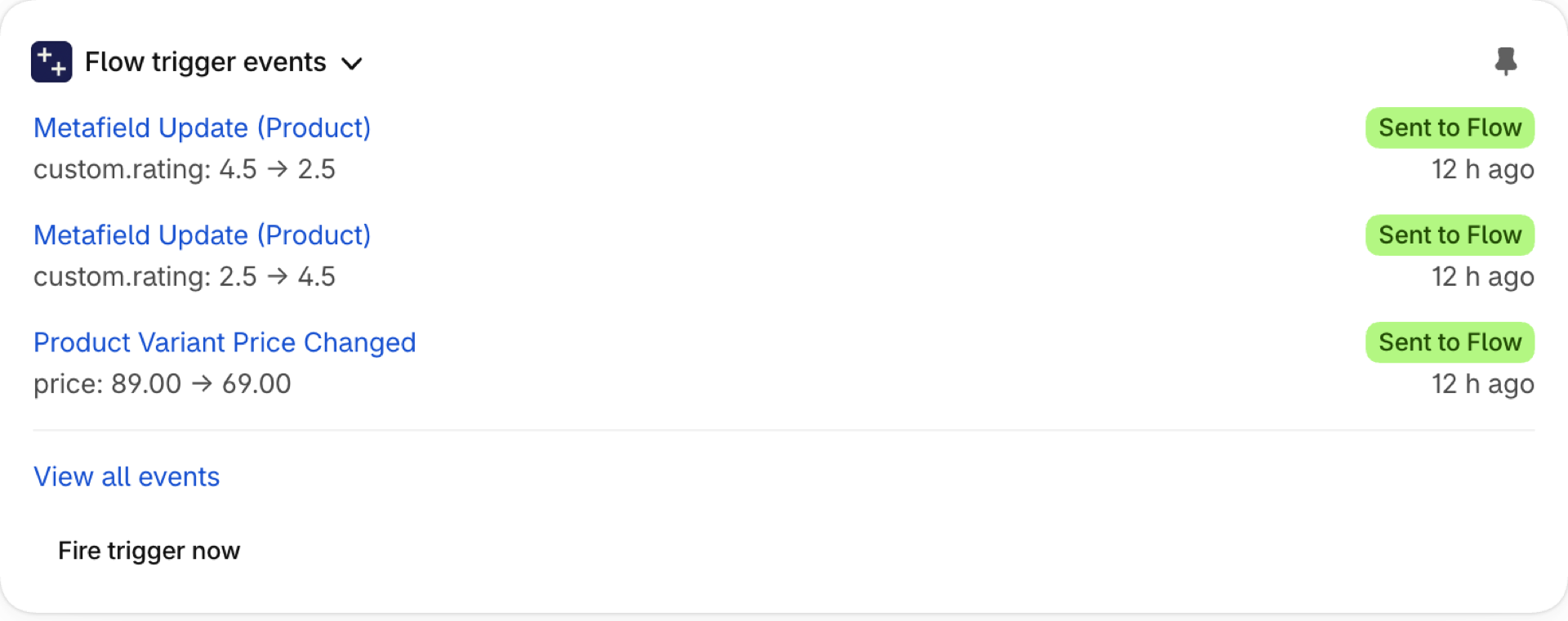
The block Flow trigger events on a record's page in the Shopify admin has a button named Fire trigger now. The button is there on product, order, customer, draft order and collection pages. On variant, company and company location pages the block has no such button, because these records have none of the five triggers above.
- Open the record in your Shopify admin and find the block Flow trigger events. If you have not added the block yet, see Trigger events on a record's admin page.
- Click the button Fire trigger now. The block names the trigger and asks for confirmation. It also reminds you that every active workflow that starts with this trigger runs once, and that this counts as one event.
- The block now shows two buttons. The first button confirms and starts the trigger. The second button cancels.
Two clicks on purpose: a button that starts workflows should not be triggered by accident. A moment later the event appears in the list of the block, like any other event of that record.
If the trigger cannot be started, the block says why: the trigger is switched off, a permission is missing, or your plan limit is reached. After many clicks in a short time the block asks you to try again in a minute.
What your workflow receives
The event is the same as the one a real update sends, with the record as it is now. Three things are different, because nothing changed:
- There are no old and new values. Even with the setting Send old and new values switched on, the list of changes in the event is empty.
- The field selection of the trigger is not applied. The setting named Which changes fire this decides which real updates start the trigger. A run you start by hand covers every record it finds.
- Custom triggers do not run. A run is for the workflows of one built-in trigger. Your own custom triggers that listen to the same event are not run for these events. See Custom triggers.
In Event History
Event History lists these events with the source Manual run. This applies to events from a run and to events from the button Fire trigger now. So you can tell them apart from the events Shopify sent. To see only these events, pick Manual run in the filter Source.
A manual run is not a test. A test is free and has the source Test. A manual run is a real event: it starts your workflows and counts toward your plan.
What happens if I start the same run twice?
The second run sends an event for every matching record again, and every event counts again. Check the list Recent runs before you repeat a run.
How long does a run take?
A run works through the records in batches, so a large run takes a while. The progress column shows how far the run is. Your workflows start as the events arrive in Shopify Flow.
The dialog says the trigger is switched off, or the run is refused. Why?
The trigger is switched off, or the permission for that data is not granted. Switch the trigger on and grant the permission, then start the run again. See The Triggers page (formerly Settings) and Permissions and data access.
Next steps
- Plans and usage - what counts as an event and what happens at the limit.
- Trigger events on a record's admin page - the block with the button for a single record.
- Event history and troubleshooting - find the events of a run.
- The Triggers page (formerly Settings) - switch a trigger on before you run it.