
Checkout triggers, step by step
Step-by-step Shopify Flow tutorials for checkout errors, rejected discount codes and first-time customer orders.
Three triggers around the moment of purchase. Two come from the shopper's browser during checkout and tell you that checkout is failing before a support ticket does. The third is an ordinary order trigger for a customer's very first order.
On this page: Checkout Error Shown, Checkout Discount Code Rejected, First-Time Customer Order
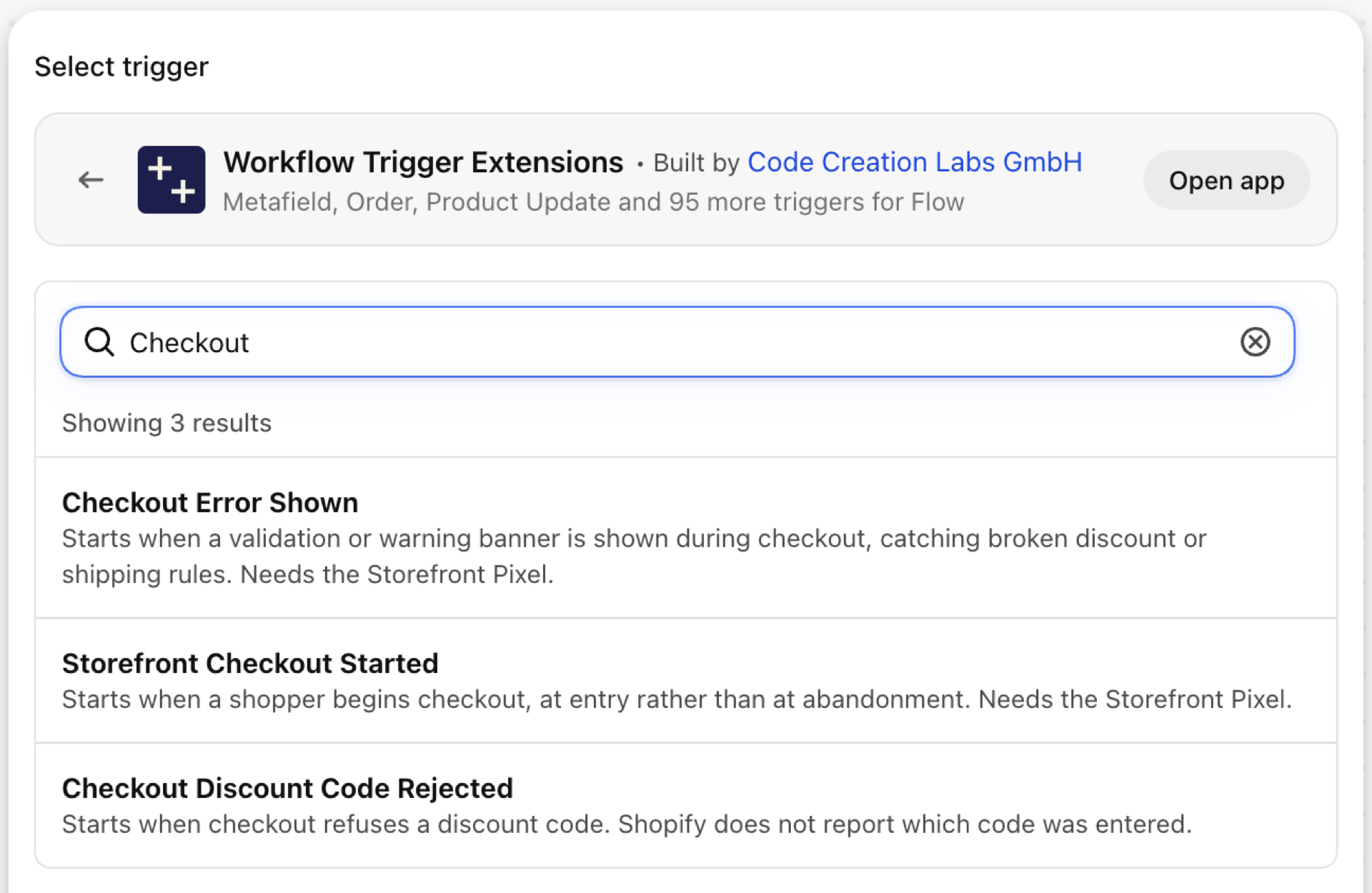
Checkout Error Shown
Fires when checkout shows an error or a warning to a shopper: an address that does not validate, a declined payment, a field that rejects its input. It carries the message, its type and the field it belongs to.
| Fires from | The app's storefront pixel, in the shopper's browser |
| Permission | Storefront Behaviour Access |
| Switched on | Turning on a Flow workflow that uses it switches it on. Its own switch is on the app's Triggers page |
Use it for
- Find out that checkout is failing without waiting for complaints.
- Spot a broken shipping or payment rule after a change.
What Checkout Error Shown sends to your workflow
| Variable in Flow | Type | What it holds |
|---|---|---|
checkoutAlert |
Object | The message shown and where it appeared |
checkoutAlert.message |
Text | What the shopper was told, in their language. |
checkoutAlert.type |
Text | The kind of alert, e.g. INPUT_INVALID. |
checkoutAlert.target |
Text | The field that failed, e.g. cart.discountCode. |
eventId |
Text | The id of this event. Search for it in the app's Event History to see exactly what was sent. |
Example: Collect checkout errors in a channel
- Pick Checkout Error Shown as the trigger.
- Add a Condition to skip the noise:
checkoutAlert.targetNot equal tocart.discountCode(rejected codes have their own trigger). - Add Send HTTP request to Slack:
{{checkoutAlert.type}} on {{checkoutAlert.target}}: {{checkoutAlert.message}}. - Turn the workflow on and watch for a sudden rise rather than for single events.
Checkout Discount Code Rejected
Fires when checkout refuses a discount code. Shopify does not tell apps which code was typed, so the event carries the reason and nothing else.
| Fires from | The app's storefront pixel, in the shopper's browser |
| Permission | Storefront Behaviour Access |
| Switched on | Turning on a Flow workflow that uses it switches it on. Its own switch is on the app's Triggers page |
Use it for
- Notice an expired or mistyped campaign code within minutes of an email going out.
What Checkout Discount Code Rejected sends to your workflow
| Variable in Flow | Type | What it holds |
|---|---|---|
discountAttempt |
Object | Why the code was not applied, in the shopper's language |
discountAttempt.reason |
Text | |
eventId |
Text | The id of this event. Search for it in the app's Event History to see exactly what was sent. |
Example: Warn marketing about a rise in rejected codes
- Pick Checkout Discount Code Rejected as the trigger.
- Add Send HTTP request to a channel or a counter:
A discount code was rejected: {{discountAttempt.reason}}. - Turn the workflow on. Right after sending a campaign, a burst of these means the code in the email does not work.
First-Time Customer Order
Fires when an order is placed by a customer who has never ordered before. It is an order trigger, not a browser one: it arrives reliably and carries the order and the customer as references.
| Fires from | Shopify webhook |
| Permission | Order Data Access + Customer Data Access |
| Switched on | Turning on a Flow workflow that uses it switches it on. Its own switch is on the app's Triggers page |
Use it for
- Welcome series, a thank-you note or a small gift for first orders.
- Tag first-time buyers for later segmentation.
What First-Time Customer Order sends to your workflow
| Variable in Flow | Type | What it holds |
|---|---|---|
order |
Order (Shopify) | The customer's first order. A full Shopify order, so all of its fields and Flow's own order actions are available. |
customer |
Customer (Shopify) | The first-time customer. A full Shopify customer, so all of its fields and Flow's own customer actions are available. |
eventId |
Text | The id of this event. Search for it in the app's Event History to see exactly what was sent. |
Example: Tag and welcome first-time buyers
- Pick First-Time Customer Order as the trigger.
- Add Add customer tags
first-orderand Add order tagsfirst-order. - Add Send internal email to the packing team:
{{order.name}} is {{customer.displayName}}'s first order - add the welcome card. - Turn the workflow on.
Next steps
- Complete trigger reference - every trigger on one page.
- Choosing the right trigger - which one fits your case.
- Custom triggers - when no built-in trigger fits, write your own.
- Event history and troubleshooting - see what fired and what it carried.