
Storefront triggers, step by step
Set up Shopify Flow triggers for product views, cart activity, checkout starts, searches and out-of-stock views, with step-by-step examples.
These triggers start from what a shopper does on your online store, not from a change in your admin. The app collects them with a web pixel that it installs for you when the first one is switched on.
Read Storefront triggers first: it explains consent, volume and what the pixel does and does not send. Every event counts towards your plan, and a busy store produces more product views in a day than order updates in a year.
On this page: Storefront Product Viewed, Storefront Collection Viewed, Storefront Product Added to Cart, Storefront Product Removed from Cart, Storefront Cart Viewed, Storefront Checkout Started, Storefront Search, Storefront Search Returned No Results, Out-of-Stock Variant Viewed, Signed-In Customer Visited, B2B Buyer Visited, Custom Storefront Trigger
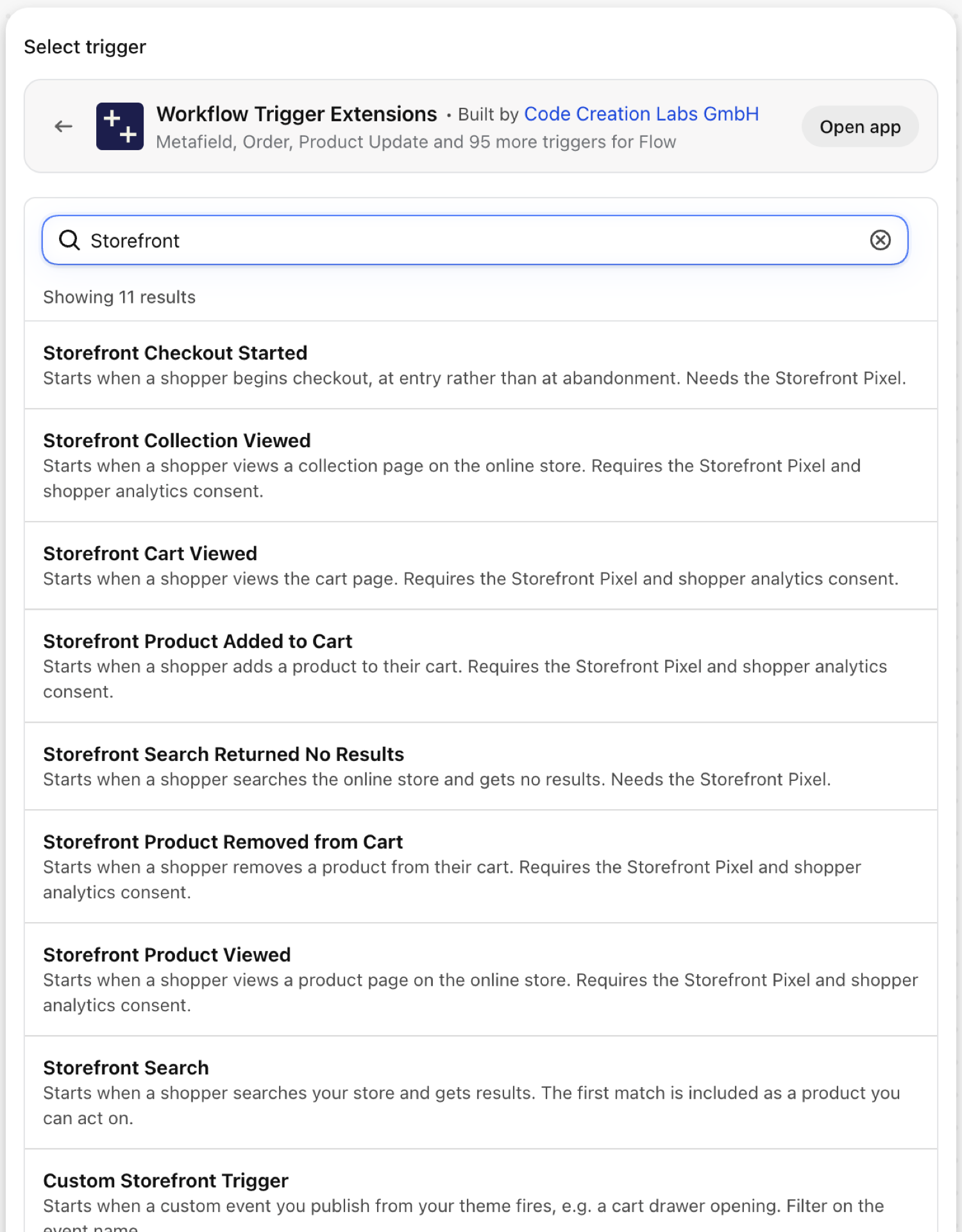
Storefront Product Viewed
Fires when a shopper opens a product page. It carries the product as a reference and the variant that was shown, with SKU and price.
| Fires from | The app's storefront pixel, in the shopper's browser |
| Permission | Storefront Behaviour Access + Product, Variant & Collection Data Access |
| Switched on | Turning on a Flow workflow that uses it switches it on. Its own switch is on the app's Triggers page |
Use it for
- Count interest in a product to steer buying or merchandising.
- Feed views into a recommendation or analytics tool that has no Shopify integration.
What Storefront Product Viewed sends to your workflow
| Variable in Flow | Type | What it holds |
|---|---|---|
product |
Product (Shopify) | The product that was viewed. A full Shopify product, so all of its fields and Flow's own product actions are available. |
viewedVariant |
Object | The variant shown, with its SKU and price |
viewedVariant.variantId |
ID | |
viewedVariant.variantTitle |
Text | |
viewedVariant.sku |
Text | |
viewedVariant.price |
Money (amount, currencyCode) | |
viewedVariant.vendor |
Text | |
viewedVariant.productType |
Text | |
viewedVariant.productUrl |
Text | |
eventId |
Text | The id of this event. Search for it in the app's Event History to see exactly what was sent. |
Example: Count views in a product metafield
- Pick Storefront Product Viewed as the trigger.
- Add Run code that reads the current value of the product metafield
custom.view_countfrom theproductreference and returns it plus one. - Add Update product metafield with the returned number.
- Turn the workflow on.
Storefront Collection Viewed
Fires when a shopper opens a collection page. It carries the collection's id and title.
| Fires from | The app's storefront pixel, in the shopper's browser |
| Permission | Storefront Behaviour Access |
| Switched on | Turning on a Flow workflow that uses it switches it on. Its own switch is on the app's Triggers page |
Use it for
- See which campaign collections get traffic.
- Forward collection views to an external analytics endpoint.
What Storefront Collection Viewed sends to your workflow
| Variable in Flow | Type | What it holds |
|---|---|---|
collection |
Object | The collection that was viewed |
collection.id |
ID | |
collection.title |
Text | |
eventId |
Text | The id of this event. Search for it in the app's Event History to see exactly what was sent. |
Example: Forward views of a campaign collection
- Pick Storefront Collection Viewed as the trigger.
- Add a Condition:
collection.titleEqual toSummer Sale. - Add Send HTTP request to your analytics endpoint.
- Turn the workflow on.
Storefront Product Added to Cart
Fires when a shopper adds an item to the cart. It carries the product, the variant, the quantity and the line total.
| Fires from | The app's storefront pixel, in the shopper's browser |
| Permission | Storefront Behaviour Access + Product, Variant & Collection Data Access |
| Switched on | Turning on a Flow workflow that uses it switches it on. Its own switch is on the app's Triggers page |
Use it for
- Notice unusually large quantities early, for example a B2B buyer on the consumer store.
- Track add-to-cart for products under test.
What Storefront Product Added to Cart sends to your workflow
| Variable in Flow | Type | What it holds |
|---|---|---|
product |
Product (Shopify) | The product that was added. A full Shopify product, so all of its fields and Flow's own product actions are available. |
cartLineEvent |
Object | The variant, quantity and line total |
cartLineEvent.variantId |
ID | |
cartLineEvent.variantTitle |
Text | |
cartLineEvent.sku |
Text | |
cartLineEvent.quantity |
Number | |
cartLineEvent.lineTotal |
Money (amount, currencyCode) | |
eventId |
Text | The id of this event. Search for it in the app's Event History to see exactly what was sent. |
Example: Alert sales to bulk quantities
- Pick Storefront Product Added to Cart as the trigger.
- Add a Condition:
cartLineEvent.quantityGreater than20. - Add Send internal email:
{{cartLineEvent.quantity}} x {{product.title}} / {{cartLineEvent.variantTitle}} was added to a cart. - Turn the workflow on.
Storefront Product Removed from Cart
Fires when a shopper removes an item from the cart.
| Fires from | The app's storefront pixel, in the shopper's browser |
| Permission | Storefront Behaviour Access + Product, Variant & Collection Data Access |
| Switched on | Turning on a Flow workflow that uses it switches it on. Its own switch is on the app's Triggers page |
Use it for
- Find products that are added and removed again unusually often: a price, shipping or variant problem.
What Storefront Product Removed from Cart sends to your workflow
| Variable in Flow | Type | What it holds |
|---|---|---|
product |
Product (Shopify) | The product that was removed. A full Shopify product, so all of its fields and Flow's own product actions are available. |
cartLineEvent |
Object | The variant, quantity and line total |
cartLineEvent.variantId |
ID | |
cartLineEvent.variantTitle |
Text | |
cartLineEvent.sku |
Text | |
cartLineEvent.quantity |
Number | |
cartLineEvent.lineTotal |
Money (amount, currencyCode) | |
eventId |
Text | The id of this event. Search for it in the app's Event History to see exactly what was sent. |
Example: Log removals for a product under test
- Pick Storefront Product Removed from Cart as the trigger.
- Add a Condition:
product.tagsIncludeswatch. - Add Send HTTP request to a sheet or analytics endpoint with
{{product.title}}and{{cartLineEvent.sku}}. - Turn the workflow on.
Storefront Cart Viewed
Fires when a shopper opens the cart page (/cart). It carries the cart id, the number of items and the total.
| Fires from | The app's storefront pixel, in the shopper's browser |
| Permission | Storefront Behaviour Access |
| Switched on | Turning on a Flow workflow that uses it switches it on. Its own switch is on the app's Triggers page |
Use it for
- Notice high-value carts.
What Storefront Cart Viewed sends to your workflow
| Variable in Flow | Type | What it holds |
|---|---|---|
cartSnapshot |
Object | The cart contents at the time it was viewed |
cartSnapshot.cartId |
ID | |
cartSnapshot.totalQuantity |
Number | |
cartSnapshot.total |
Money (amount, currencyCode) | |
eventId |
Text | The id of this event. Search for it in the app's Event History to see exactly what was sent. |
Example: Alert on carts above 1,000
- Pick Storefront Cart Viewed as the trigger.
- Add Run code returning
big: Number(input.cartSnapshot.total.amount) > 1000, because money amounts arrive as text. - Add a Condition on
big, then Send internal email. - Turn the workflow on.
Storefront Checkout Started
Fires when a shopper enters checkout - at the start, not when they abandon it.
| Fires from | The app's storefront pixel, in the shopper's browser |
| Permission | Storefront Behaviour Access |
| Switched on | Turning on a Flow workflow that uses it switches it on. Its own switch is on the app's Triggers page |
Use it for
- Measure checkout starts against orders.
- Notice very large checkouts while they happen.
What Storefront Checkout Started sends to your workflow
| Variable in Flow | Type | What it holds |
|---|---|---|
checkoutSnapshot |
Object | The checkout token, line count and total |
checkoutSnapshot.checkoutToken |
Text | |
checkoutSnapshot.lineItemCount |
Number | |
checkoutSnapshot.total |
Money (amount, currencyCode) | |
eventId |
Text | The id of this event. Search for it in the app's Event History to see exactly what was sent. |
Example: Alert on a large checkout
- Pick Storefront Checkout Started as the trigger.
- Add a Condition:
checkoutSnapshot.lineItemCountGreater than15. - Add Send internal email with
{{checkoutSnapshot.total.amount}} {{checkoutSnapshot.total.currencyCode}}. - Turn the workflow on.
Storefront Search
Fires when a storefront search returns at least one result. It carries the term, the number of results, up to ten matches, and the first match as a product reference.
| Fires from | The app's storefront pixel, in the shopper's browser |
| Permission | Storefront Behaviour Access + Product, Variant & Collection Data Access |
| Switched on | Turning on a Flow workflow that uses it switches it on. Its own switch is on the app's Triggers page |
Use it for
- See what shoppers search for and what they are shown first.
- Check that important terms lead to the right product.
What Storefront Search sends to your workflow
| Variable in Flow | Type | What it holds |
|---|---|---|
product |
Product (Shopify) | The first product the search returned, as a full product you can branch on. A full Shopify product, so all of its fields and Flow's own product actions are available. |
storefrontSearch |
Object | The search term, the number of results, and up to 10 matches including the first |
storefrontSearch.query |
Text | The term the shopper typed. |
storefrontSearch.resultCount |
Number | How many product variants the search returned. |
storefrontSearch.results |
List of objects | The matches, newest-relevance first, capped at 10 to keep the payload small. |
storefrontSearch.results (each).productId |
ID | |
storefrontSearch.results (each).title |
Text | |
storefrontSearch.results (each).vendor |
Text | |
storefrontSearch.results (each).url |
Text | |
eventId |
Text | The id of this event. Search for it in the app's Event History to see exactly what was sent. |
Example: Check what a key search term shows first
- Pick Storefront Search as the trigger.
- Add a Condition:
storefrontSearch.queryIncludesgift card. - Add a second Condition:
product.titleDoes not includeGift Card, then Send internal email: the first hit for{{storefrontSearch.query}}was{{product.title}}. - Turn the workflow on.
Storefront Search Returned No Results
Fires when a storefront search finds nothing. This is a list of things shoppers expected you to sell, or words your search does not understand.
| Fires from | The app's storefront pixel, in the shopper's browser |
| Permission | Storefront Behaviour Access |
| Switched on | Turning on a Flow workflow that uses it switches it on. Its own switch is on the app's Triggers page |
Use it for
- Collect missing products and synonyms.
- Spot a broken search after a theme or app change: a sudden rise is a symptom.
What Storefront Search Returned No Results sends to your workflow
| Variable in Flow | Type | What it holds |
|---|---|---|
searchQuery |
Object | The search term and its result count |
searchQuery.query |
Text | |
searchQuery.resultCount |
Number | |
eventId |
Text | The id of this event. Search for it in the app's Event History to see exactly what was sent. |
Example: Collect searches without results in a sheet
- Pick Storefront Search Returned No Results as the trigger.
- Add Send HTTP request to a Google Sheets or Airtable webhook with
{{searchQuery.query}}. - Review the sheet weekly: add synonyms or redirects in Shopify's Search & Discovery app, or stock what people ask for.
- Turn the workflow on.
Out-of-Stock Variant Viewed
Fires when a shopper lands on a product page whose shown variant is sold out across all locations. It is a demand signal: someone wanted something you could not sell.
| Fires from | The app's storefront pixel, in the shopper's browser |
| Permission | Storefront Behaviour Access + Inventory Data Access + Product, Variant & Collection Data Access |
| Switched on | Turning on a Flow workflow that uses it switches it on. Its own switch is on the app's Triggers page |
Use it for
- Prioritise restocks by real demand.
- Tag products for a back-in-stock campaign.
What Out-of-Stock Variant Viewed sends to your workflow
| Variable in Flow | Type | What it holds |
|---|---|---|
product |
Product (Shopify) | The product the out-of-stock variant belongs to. A full Shopify product, so all of its fields and Flow's own product actions are available. |
outOfStockVariant |
Object | The variant and its available quantity |
outOfStockVariant.variantId |
ID | |
outOfStockVariant.variantTitle |
Text | |
outOfStockVariant.sku |
Text | |
outOfStockVariant.availableQuantity |
Number | |
eventId |
Text | The id of this event. Search for it in the app's Event History to see exactly what was sent. |
Example: Tag sold-out products that shoppers still look at
- Pick Out-of-Stock Variant Viewed as the trigger.
- Add Add product tags with
restock-demand. - Add Send internal email to buying:
{{product.title}} / {{outOfStockVariant.variantTitle}} ({{outOfStockVariant.sku}}) was viewed while sold out. - Turn the workflow on.
Signed-In Customer Visited
Fires when a signed-in customer is on your storefront. Repeated page views are collapsed into one visit per customer within a window you choose, from every visit to once a month.
| Fires from | The app's storefront pixel, in the shopper's browser |
| Permission | Storefront Behaviour Access + Customer Data Access |
| Switched on | Turning on a Flow workflow that uses it switches it on. Its own switch is on the app's Triggers page |
Use it for
- Tell an account manager that a key customer is back.
- Start a re-engagement step for customers who return after a long time.
What Signed-In Customer Visited sends to your workflow
| Variable in Flow | Type | What it holds |
|---|---|---|
customer |
Customer (Shopify) | The signed-in customer, with their full record for branching. A full Shopify customer, so all of its fields and Flow's own customer actions are available. |
eventId |
Text | The id of this event. Search for it in the app's Event History to see exactly what was sent. |
Example: Tell the account manager that a VIP is browsing
- In the app open the settings icon next to Signed-In Customer Visited and choose the visit window, for example once a day.
- Pick Signed-In Customer Visited in Flow.
- Add a Condition:
customer.tagsIncludesvip. - Add Send internal email with
{{customer.displayName}}. - Turn the workflow on.
B2B Buyer Visited
Fires when a signed-in B2B buyer is on your storefront, with the company and the company location they buy for. Visits are collapsed per company within the window you choose.
| Fires from | The app's storefront pixel, in the shopper's browser |
| Permission | Company & Company Location Data Access (B2B) + Storefront Behaviour Access |
| Switched on | Turning on a Flow workflow that uses it switches it on. Its own switch is on the app's Triggers page |
Use it for
- Alert the sales rep of a company when its buyers are active.
- Measure how often wholesale accounts come back.
What B2B Buyer Visited sends to your workflow
| Variable in Flow | Type | What it holds |
|---|---|---|
purchasingCompany |
Object | The company and location the buyer purchases for |
purchasingCompany.companyId |
ID | |
purchasingCompany.companyName |
Text | |
purchasingCompany.companyLocationId |
ID | |
purchasingCompany.companyLocationName |
Text | |
eventId |
Text | The id of this event. Search for it in the app's Event History to see exactly what was sent. |
Example: Alert the rep when a company's buyer is active
- Set the visit window with the settings icon next to B2B Buyer Visited in the app.
- Pick B2B Buyer Visited in Flow.
- Add Send internal email:
A buyer of {{purchasingCompany.companyName}} ({{purchasingCompany.companyLocationName}}) is on the store. - Turn the workflow on.
Custom Storefront Trigger
Fires when your theme publishes an event you defined: a cart drawer opening, a size guide being used, a quiz being finished. You create the trigger in the app, give it an event name, and publish that name from your theme with one line of JavaScript.
| Fires from | The app's storefront pixel, in the shopper's browser |
| Permission | Storefront Behaviour Access |
| Switched on | Turning on a Flow workflow that uses it switches it on. Its own switch is on the app's Triggers page |
Use it for
- Everything Shopify does not report: drawers, modals, variant switches, configurators.
- Pass your own data along and use it in Flow.
What Custom Storefront Trigger sends to your workflow
| Variable in Flow | Type | What it holds |
|---|---|---|
eventName |
Text | The event name you published, e.g. cart_drawer_opened. Filter on this to run only for one of them. |
triggerName |
Text | The name you gave this storefront trigger. |
output |
Object | The data you published with the event, after your transform code ran. |
output.fields |
List of objects | Each key, in the order it was defined. |
output.fields (each).key |
Text | The key, exactly as published or returned by the transform (e.g. "itemCount"). |
output.fields (each).value |
Text | The value, stringified. Objects and arrays arrive as JSON text. |
output.json |
Text | The whole payload as JSON, for merchants who prefer to parse it in one go. |
eventId |
Text | The id of this event. Search for it in the app's Event History to see exactly what was sent. |
Example: React to a finished product quiz
- In the app open Triggers, create a Custom Storefront Trigger and give it the event name
quiz_completed. Copy the snippet it shows. - In your theme, call the snippet when the quiz finishes and pass the result, for example
{ result: "dry-skin" }. - In Flow pick Custom Storefront Trigger and add a Condition:
eventNameEqual toquiz_completed. - Read your data from
output.fields(key and value pairs) or parseoutput.jsonin a Run code step. - Turn the workflow on.
Next steps
All of them need Storefront Behaviour Access. The ones that carry a product also need Product Data Access, Signed-In Customer Visited also needs Customer Data Access, and B2B Buyer Visited also needs Company access.
- Complete trigger reference - every trigger on one page.
- Choosing the right trigger - which one fits your case.
- Custom triggers - when no built-in trigger fits, write your own.
- Event history and troubleshooting - see what fired and what it carried.